Working Guide Of The MailsDaddy PST To IMAP Migration Tool
Step-by-step visual tutorial to migrate Outlook PST file mailboxes and folders to any IMAP email server (Gmail, Yahoo, AOL, Zoho, etc.) without data loss.
Migrate Complete Mailbox (11 Steps)
Click on any screenshot to view full resolution.
Download, Install & Launch the Software
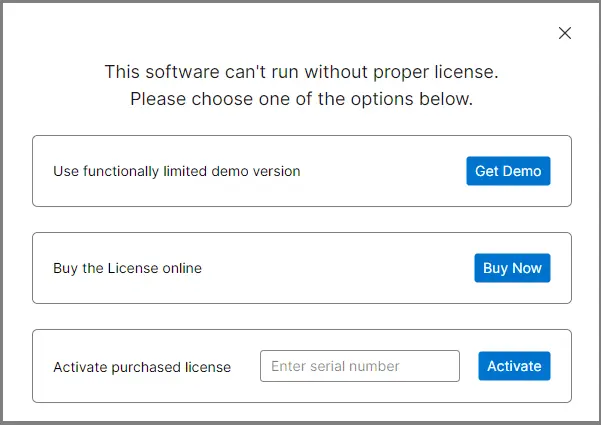
First, download, install, and then launch the PST to IMAP migration tool on your Windows system. Click on 'Get Demo' or activate it (if a license is available). The software will then automatically relaunch.
Open and Select Outlook PST File
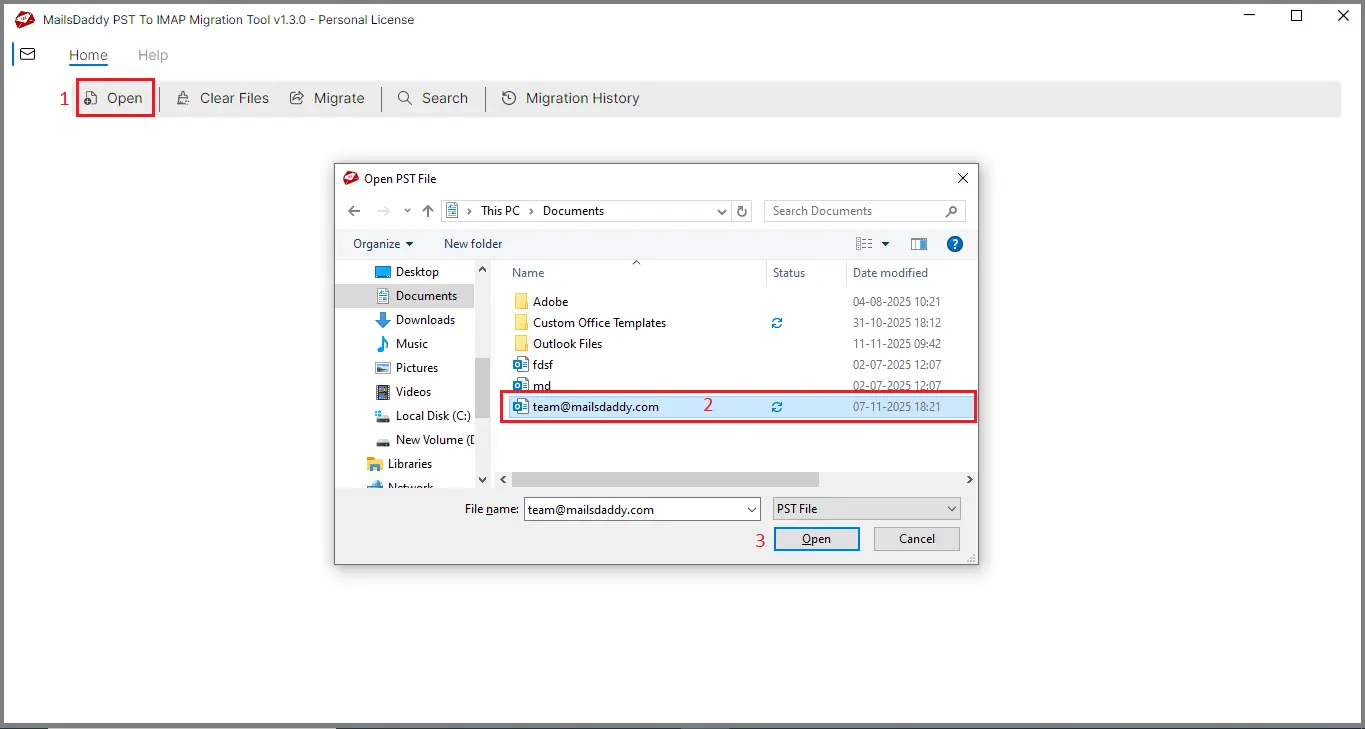
Click on Open and select the Outlook PST file which you want to import in IMAP Account.
Scan and Preview PST Mailbox Content
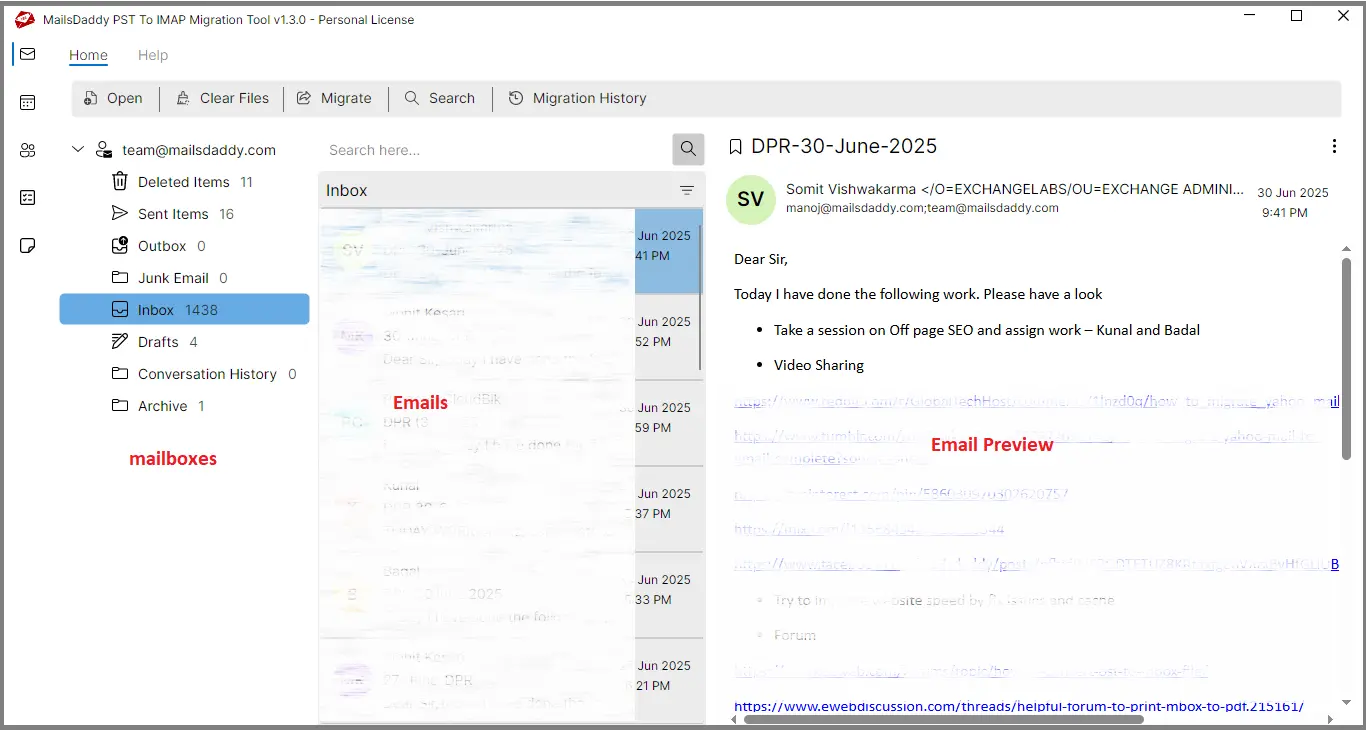
Now the software will scan the PST file and display complete PST file database in the preview section.
Select Folders & Click Migration Tab
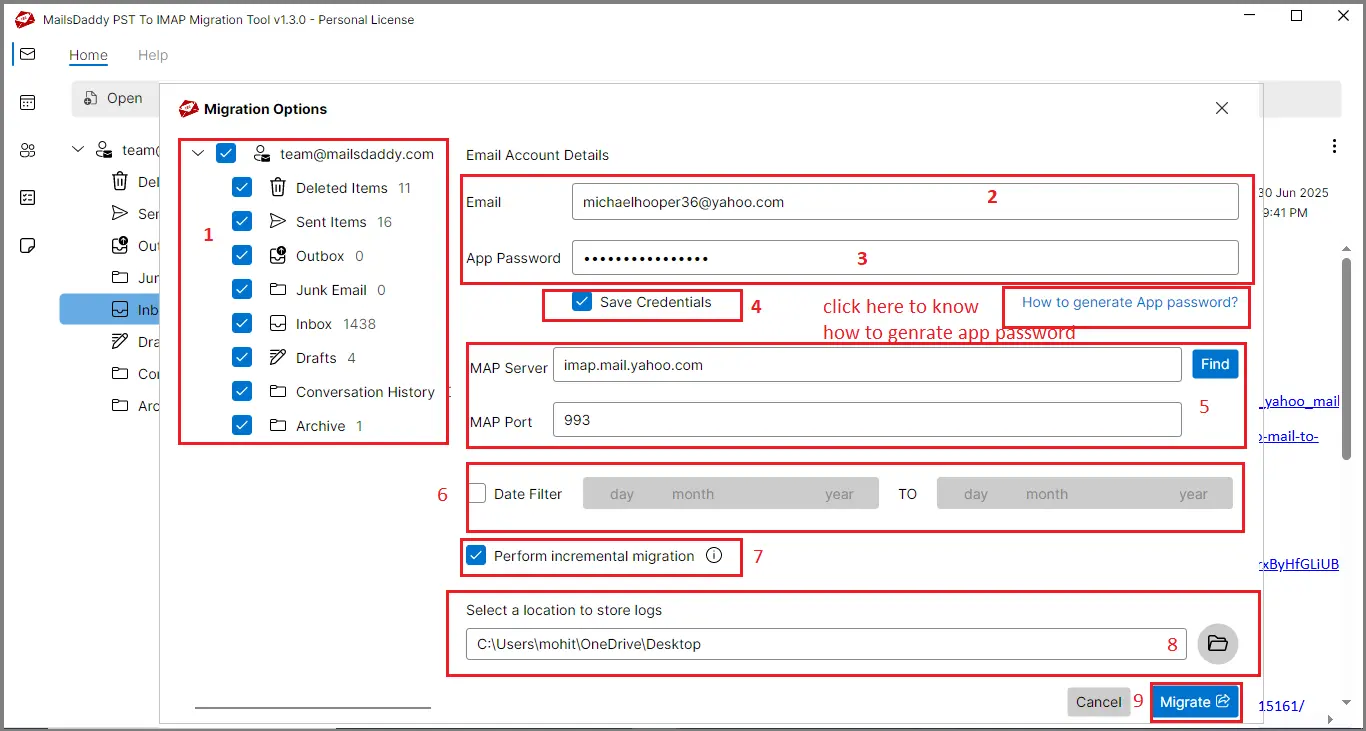
Press the Migration tab and choose all folders or selected folders from left side.

Enter IMAP Account Credentials & App Password
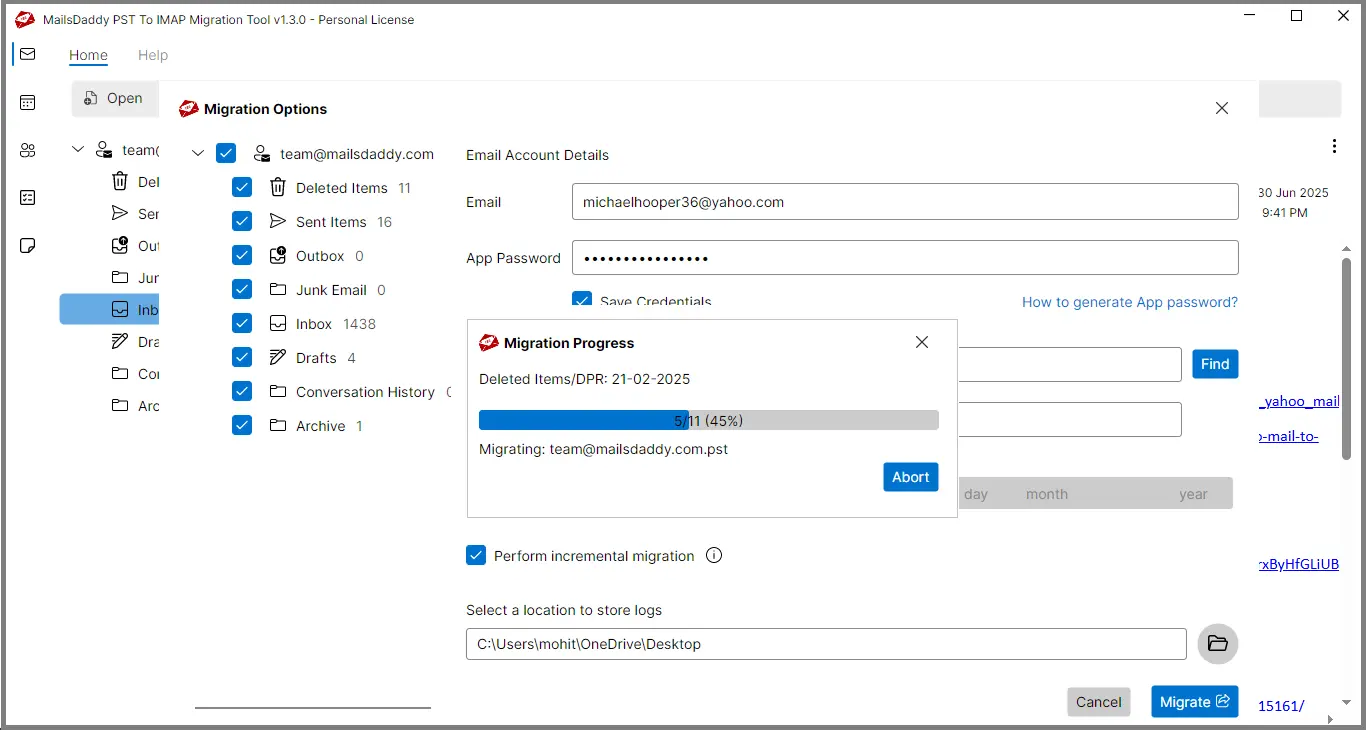
Now enter your email address and App Password. If you don't know the app password and want to know how to find it, click on 'How to generate App Password'.
Optionally Save Credentials for Future Use
If you want to save credential for future migration enable it otherwise disable it.
Auto-Fetch or Find IMAP Server Details
The software will automatically fetch the IMAP server details. If it doesn't appear in the IMAP server options, click on Find.
Apply Optional Date Range Filters
If you want to export data between two selected dates, use the date filter option; otherwise, leave this option unchecked.
Enable Incremental Migration
If you enable the 'Perform Incremental Migration' option, the software will skip any duplicate emails found on the IMAP server during the migration process, so you don't receive the same email twice. Choose this option according to your needs.
Specify Saving Location for Log Report
Click the browse icon to specify the saving location for the log report file.
Click Migrate to Execute Transfer
Finally, click the Migrate button to start the migration process. Wait until the process is complete.
Ready to Start with PST to IMAP Migration Tool?
Download the free trial version to preview all mailbox items or buy the full license for unlimited conversion.