Step By Step Guide Of PST Merge & Join Software
Follow the step by step instructions to combine multiple PST files data in single PST file format on all Windows OS.
How to Merge Multiple PST file into single PST file? (6 Steps)
Click on any screenshot to view full resolution.
Step 1: Complete Operation
Download and install the latest PST Merger application on your Windows desktop machine and launch it then click on Get demo button to use the free trial edition of the software. If you already purchase the software then you can directly activate to full version.

Launch the utility and click on the 'Open' button
Launch the utility and click on the 'Open' button. Now select all PST file, which you want to Merge into Outlook PST file

Now verify the PST files
Now verify the PST files. If you want to remove any PST file from the list then click on delete icon.

Browse the destination of saving resultant PST file by clicking on the computer icon
Browse the destination of saving resultant PST file by clicking on the computer icon. Also select all PST files that you want to merge.

Click on the Merge button and wait until the Merge process ends.
Click on the Merge button and wait until the Merge process ends.

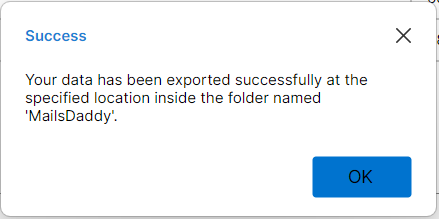
After the merging process you will get a message "Merging Successfully"
After the merging process you will get a message "Merging Successfully". Just click on the OK button here.
Ready to Start with PST Merge and Join Tool?
Download the free trial version to preview all mailbox items or buy the full license for unlimited conversion.