Complete Step by Step Process to Backup IMAP Server E-mails
Read the complete working process to export IMAP Server emails to pst, eml, msg and other formats.
How to Backup IMAP Server Mail ? (7 Steps)
Click on any screenshot to view full resolution.
First of all Download, install, and configure the MailsDaddy IMAP Backup Tool
First of all Download, install, and configure the MailsDaddy IMAP Backup Tool
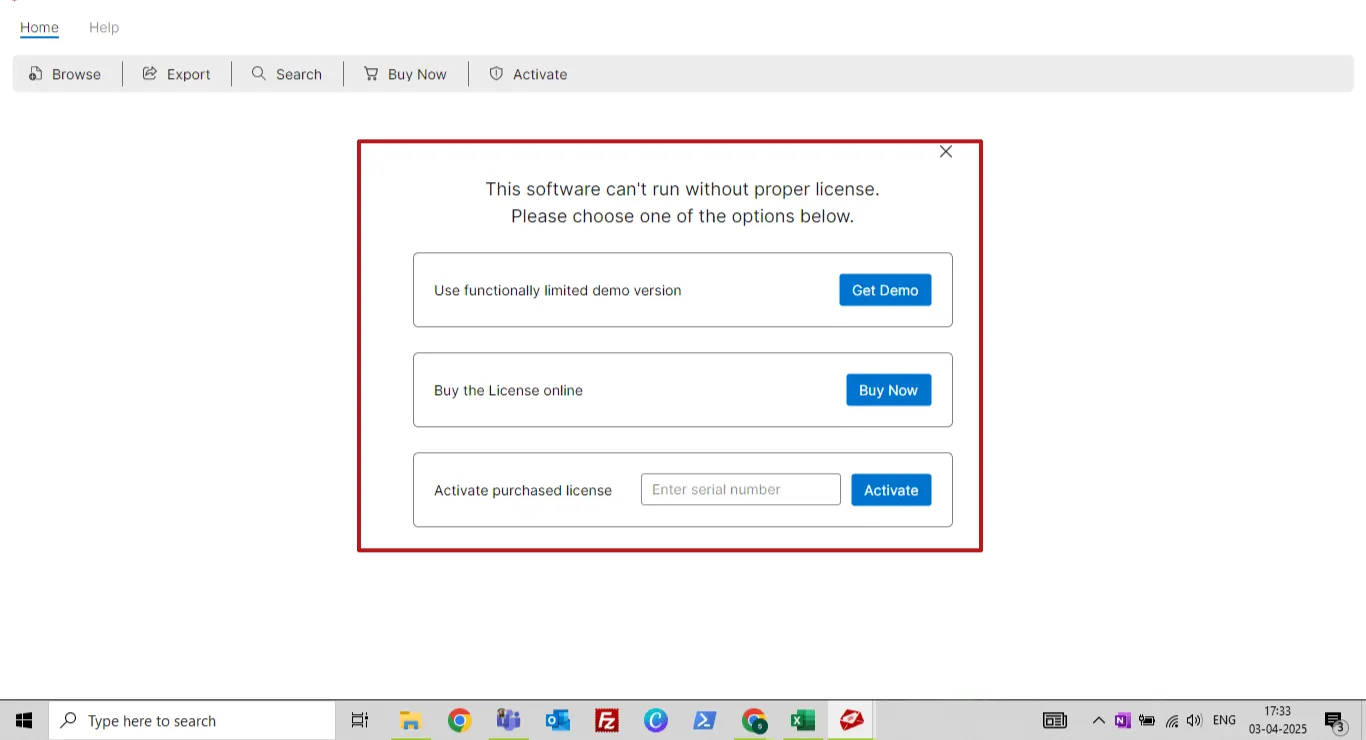
Get free demo or activate with genuine licensed activation KEY.
Get free demo or activate with genuine licensed activation KEY.
Step3 -: Complete Operation
Launch the IMAP Backup Tool, click on Add button to login with IMAP email address like Gmail, Yahoo, AOL, etc.
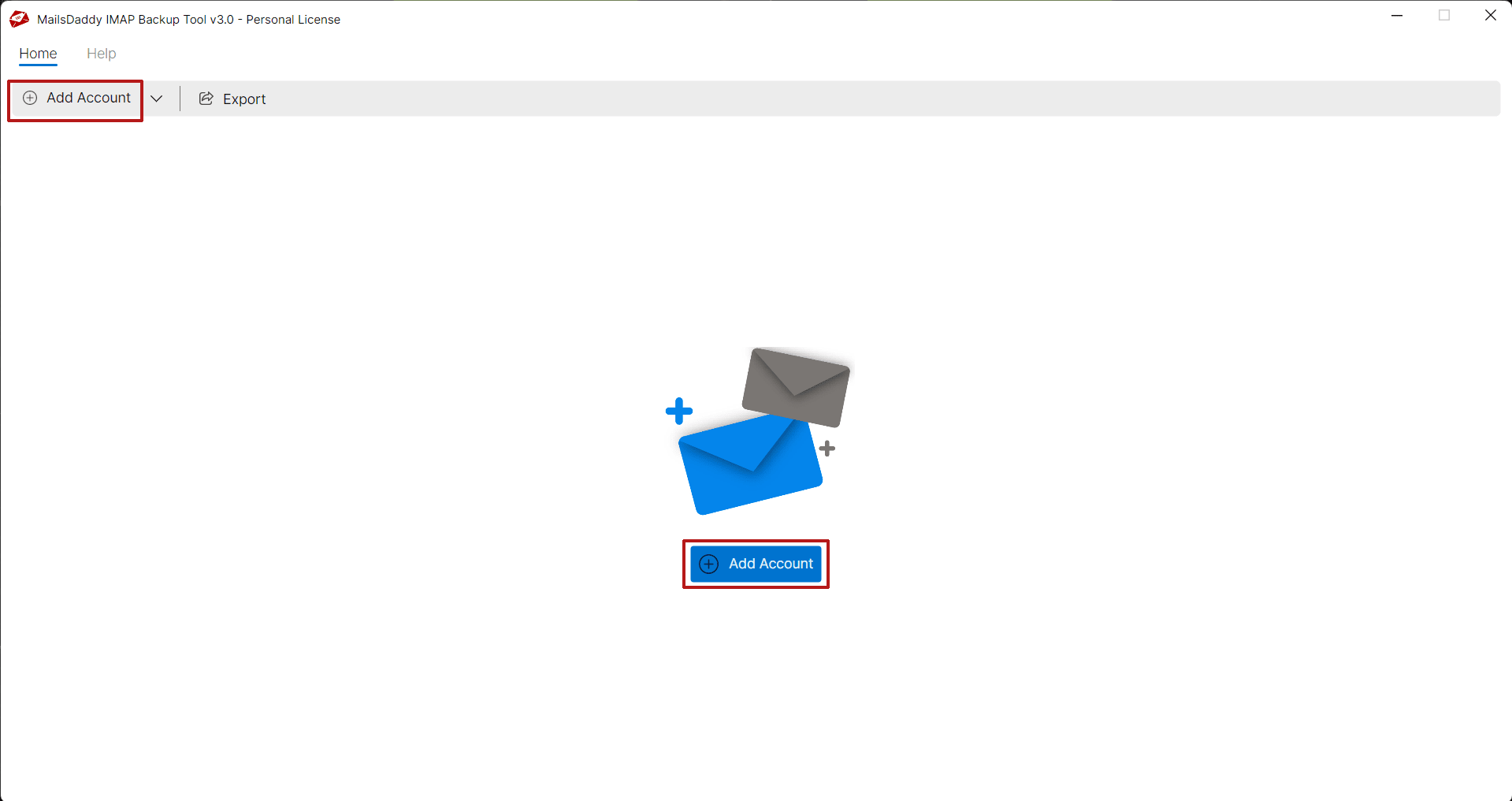
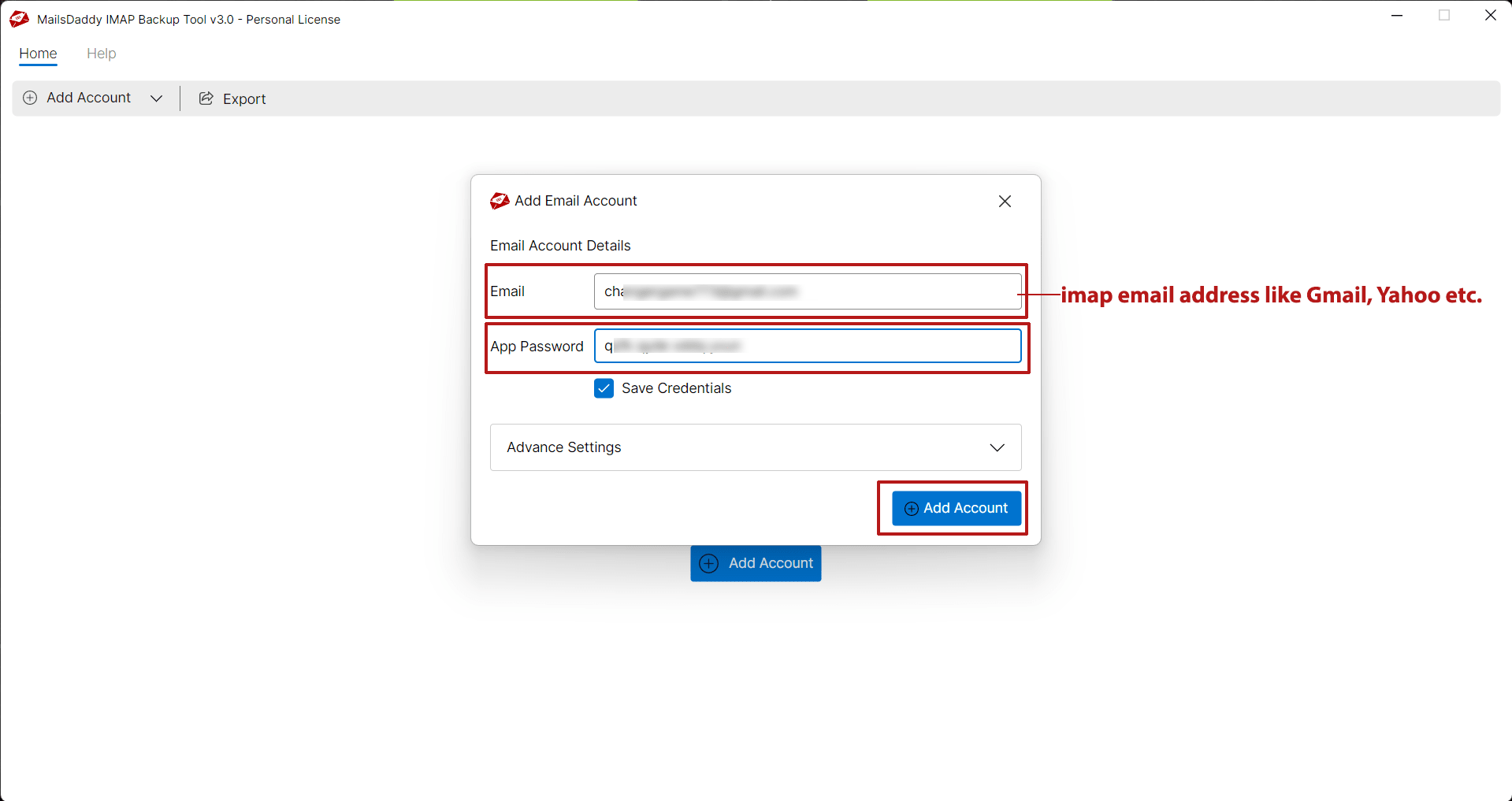
Step4 -: Complete Operation
A new window will open displaying the email address details and the generated app password. Enter your IMAP email address and paste the app password to access your email account. Watch Our Official Videos for: • Gmail App Password • Yahoo App Password
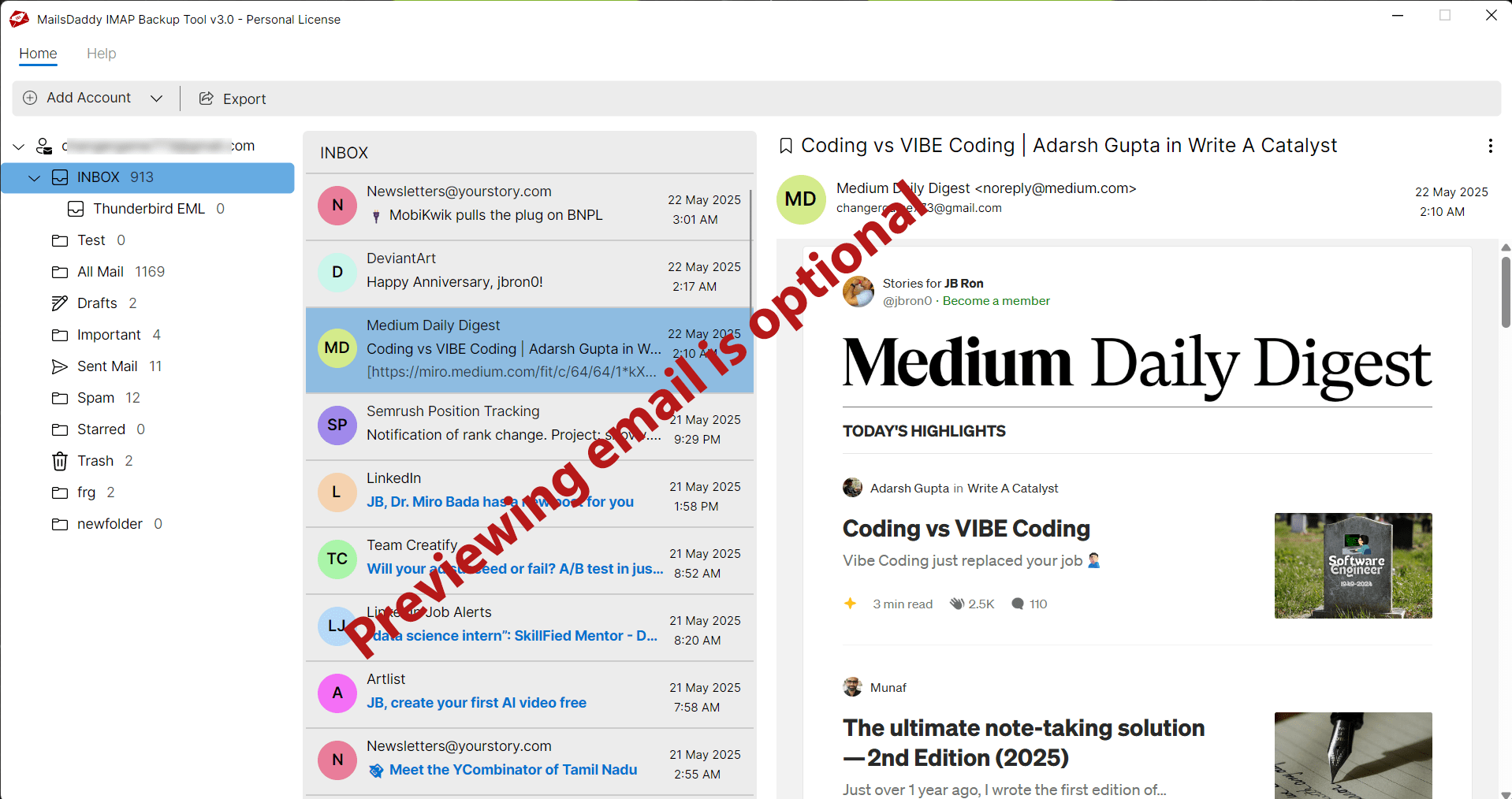
Previewing emails is optional choice
Previewing emails is optional choice. So user can directly click on Export button.
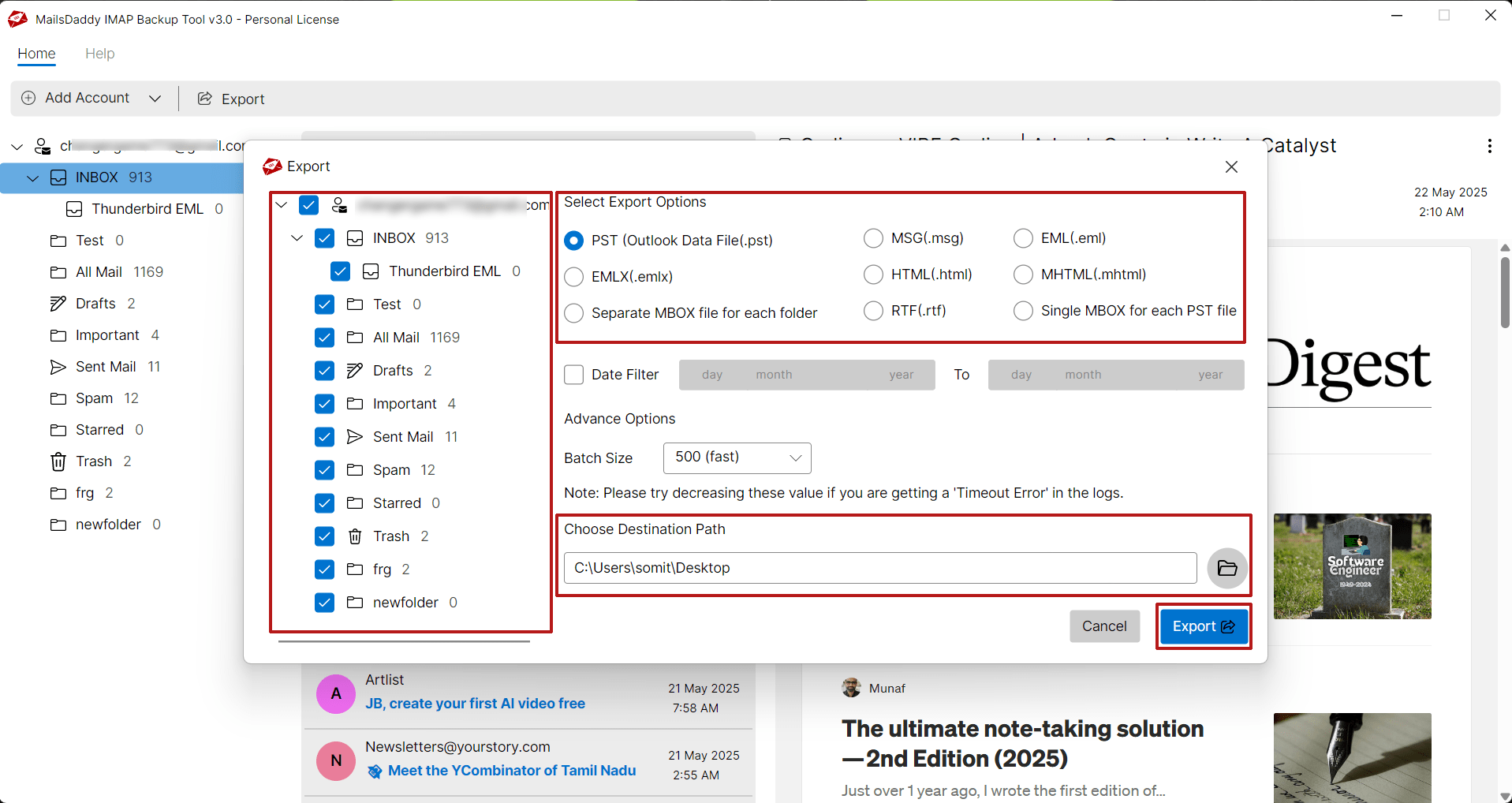
Select all or desired folders, then choose the export option
Select all or desired folders, then choose the export option. Set the destination path and click the Export button to start the conversion.
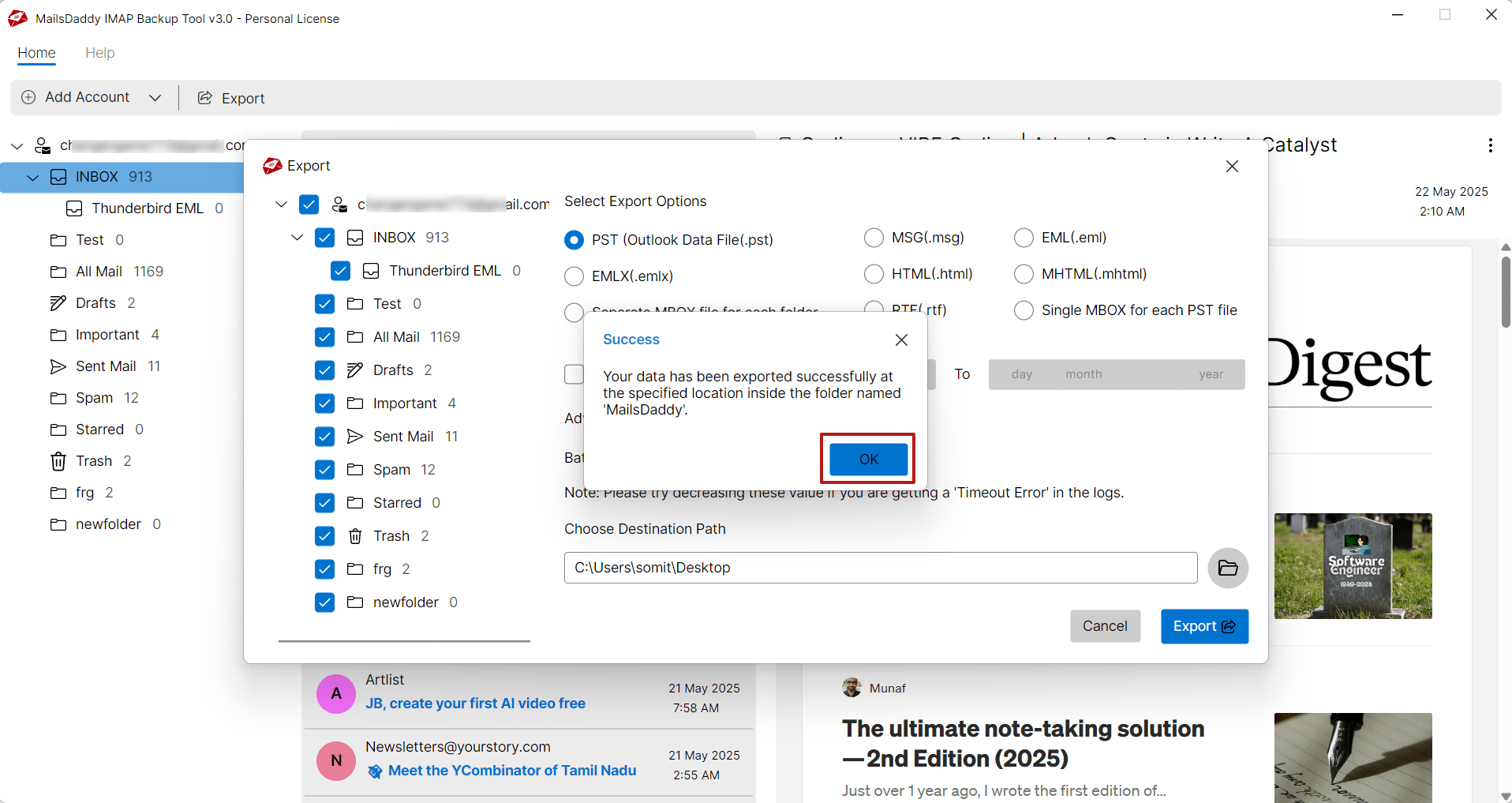
Wait for the confirmation window to appear, then click the OK button.
Wait for the confirmation window to appear, then click the OK button.
Ready to Start with Email Backup Tool?
Download the free trial version to preview all mailbox items or buy the full license for unlimited conversion.