Step By Step By Step Guide Of Thunderbird Mailboxes To PST Conversion
Working Guide of the MailsDaddy Thunderbird to Outlook Converter Tool.
How to convert Thunderbird to PST? (6 Steps)
Click on any screenshot to view full resolution.
Download and install the application (see Installation Guide)
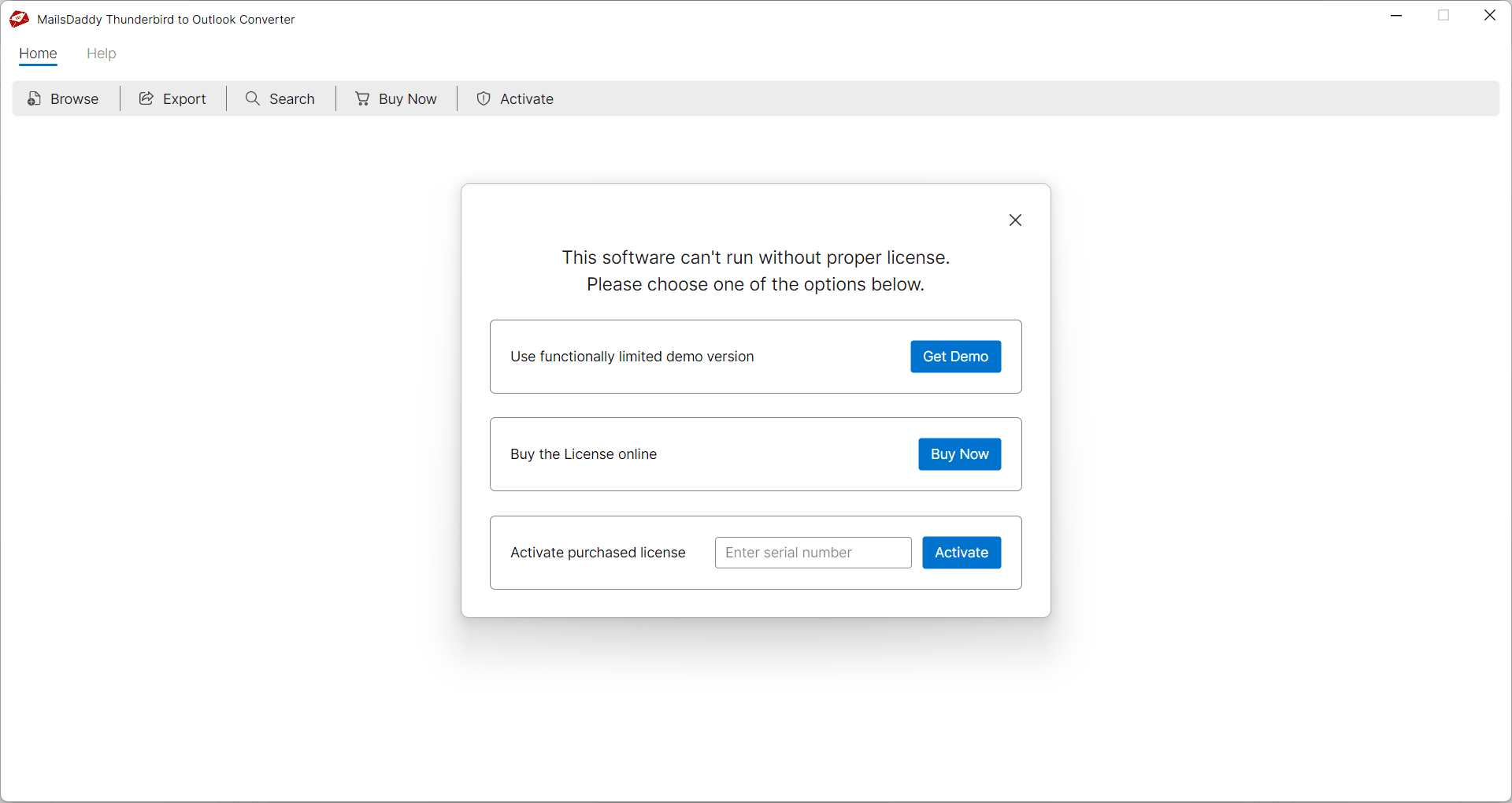
Download and install the application (see Installation Guide). Launch the software and click the 'Get Demo' button to use the free trial edition. If you’ve already purchased the software, you can activate the full version directly by entering your license key.
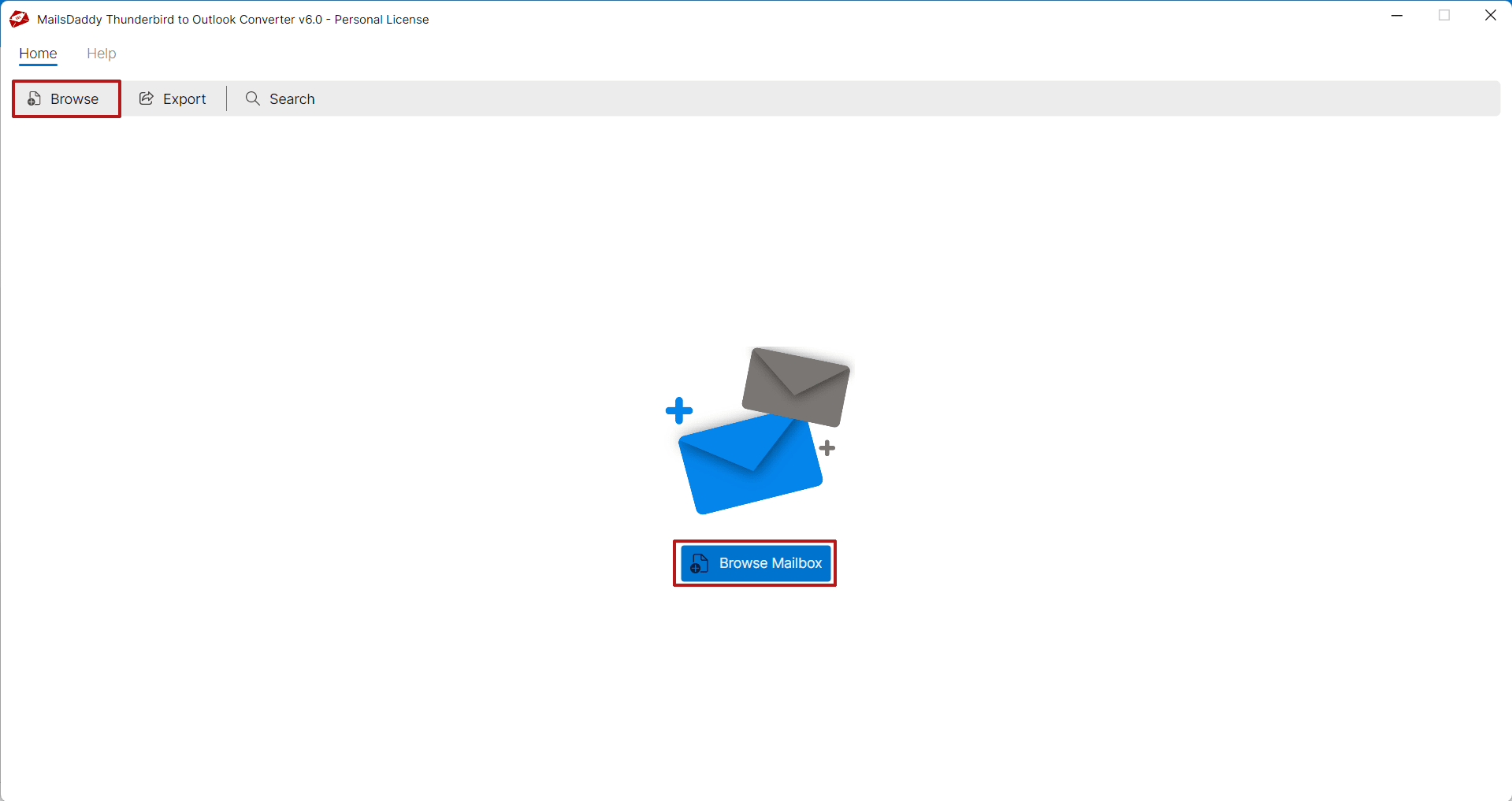
Launch Thunderbird converter, and click on Browse mailbox button
Launch Thunderbird converter, and click on Browse mailbox button. User will see two options to open files or folders. Select 'Mozilla Thunderbird/Postbox' from the list, then click the 'Auto Load' button to automatically load Thunderbird profile or folders. After that click on Next button. Note: User can also browse Thunderbird profile/folder manually by clicking on the Browse button.
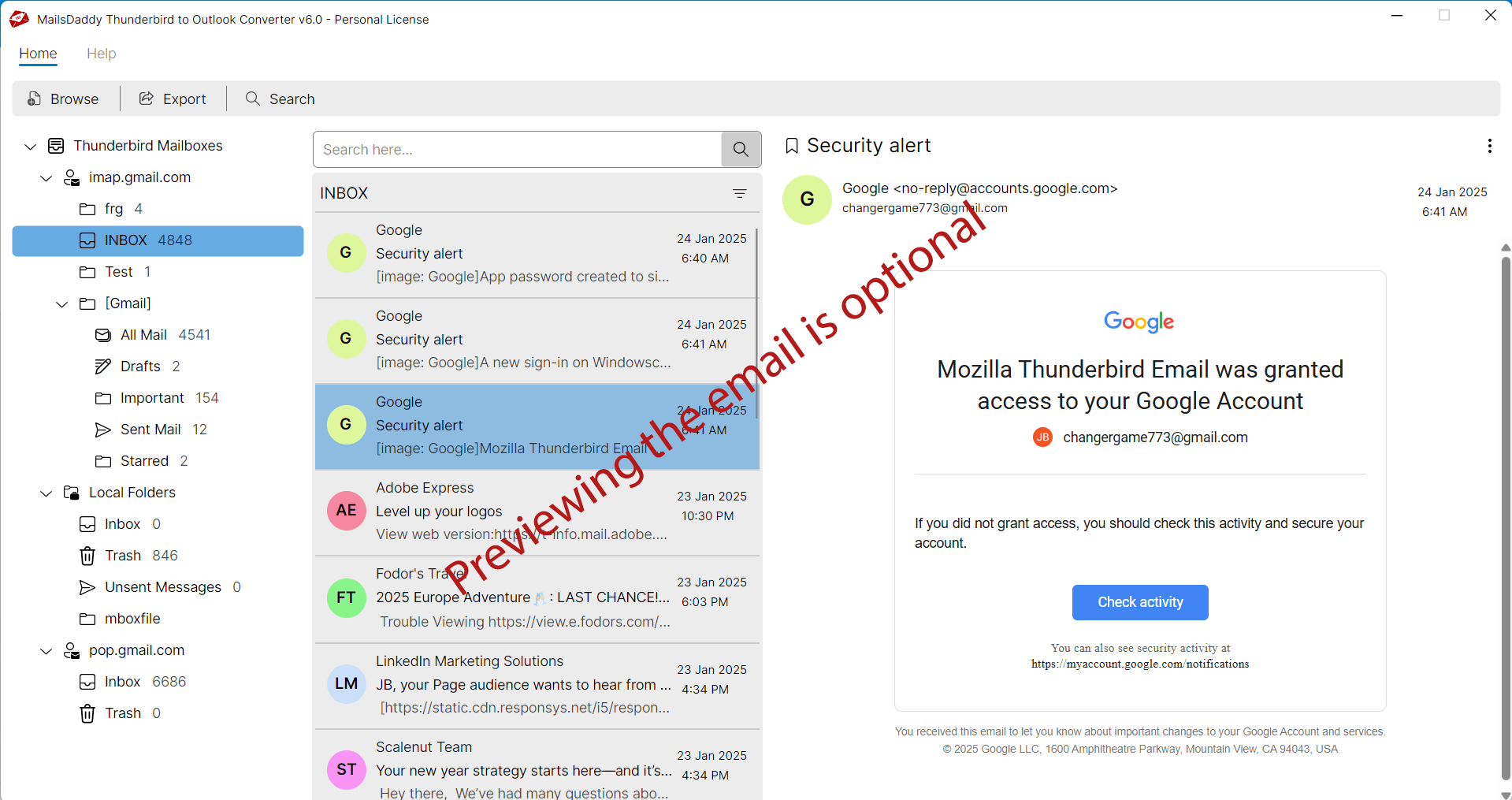
Step 3: Complete Operation
The software will automatically load all Thunderbird accounts and display the folders available in the selected profile. Users can click on a specific folder to load and preview emails, if desired (this step is optional). Otherwise, they can proceed directly by clicking the Export button.
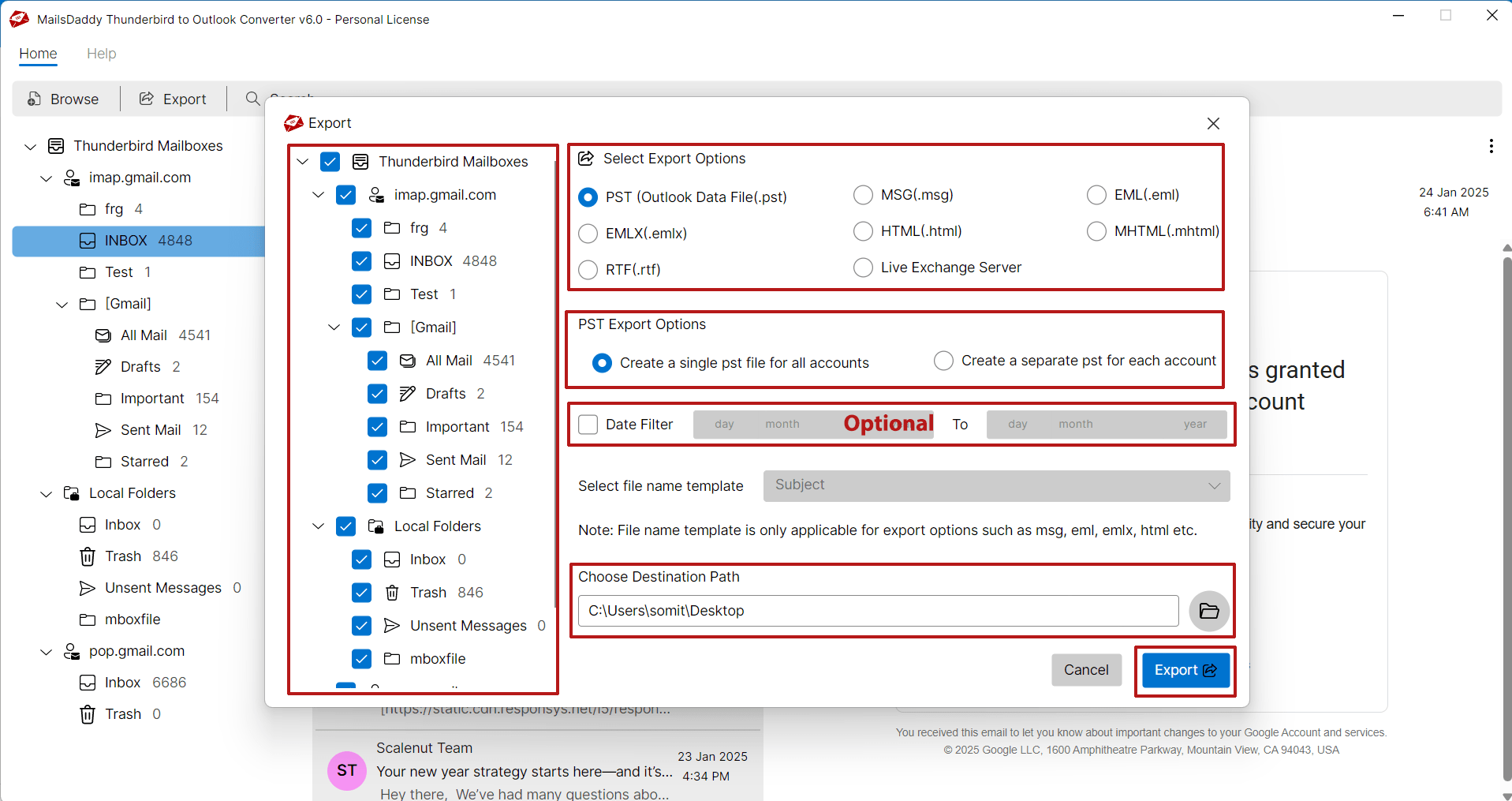
Step 4: Complete Operation
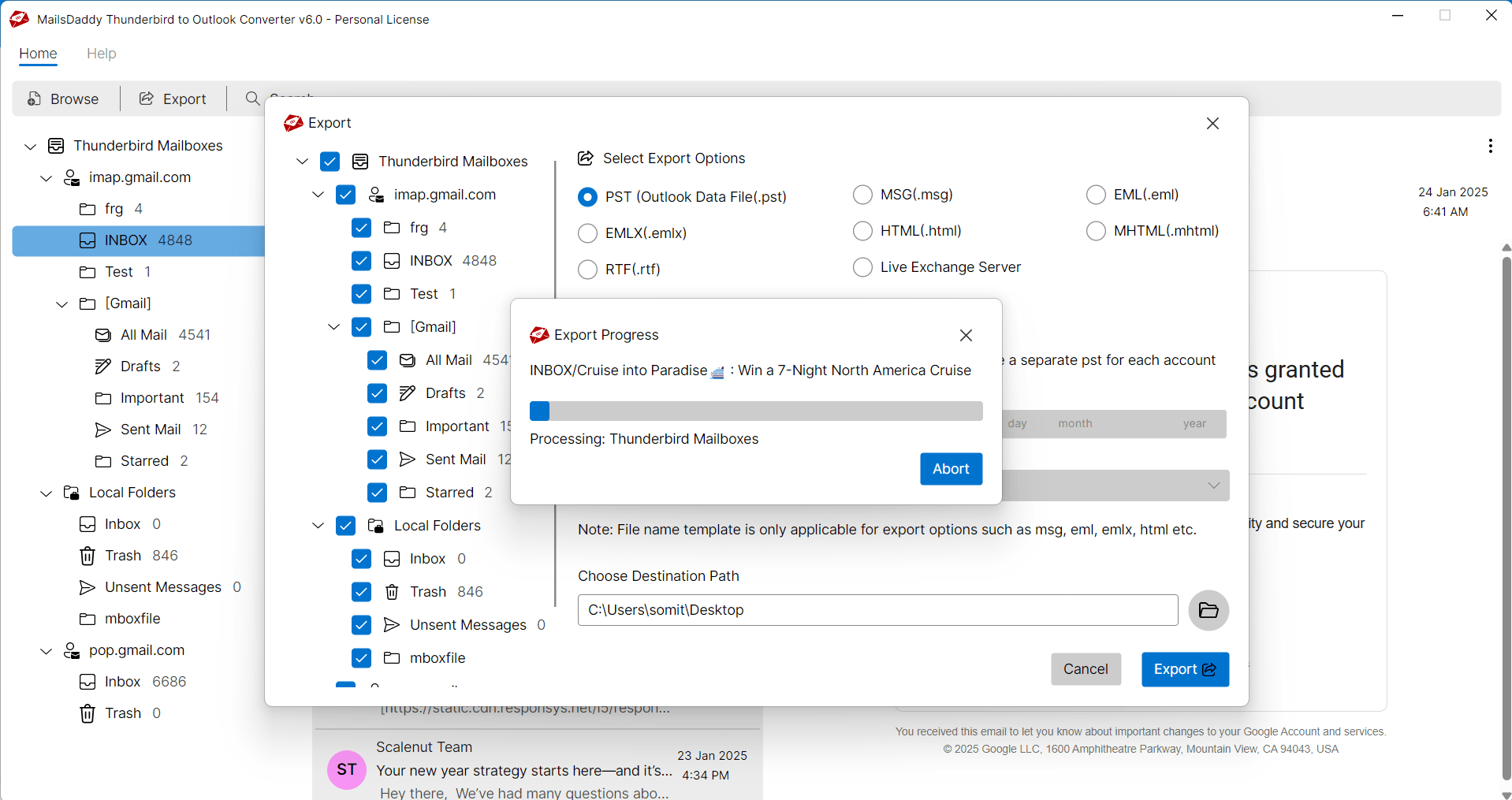
Now select PST from Export options >> choose a required PST conversion option: Single PST or Separate PST >> Set Date filter if required (optional) >> locate destination path and finally, click on Export button.
The software will start Thunderbird to Outlook PST conversion
The software will start Thunderbird to Outlook PST conversion. You may track the status through progress bar.
Step 6: Complete Operation
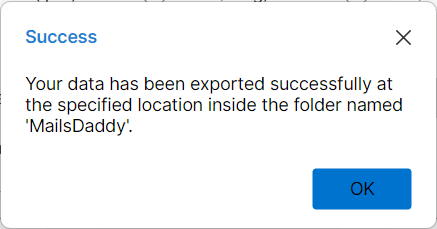
Within a few minutes, you will receive a confirmation message: "Your data has been exported successfully." Click the OK button to proceed. Read our blog to make sure how to open or import PST file in MS Outlook.
Ready to Start with Thunderbird to Outlook Converter?
Download the free trial version to preview all mailbox items or buy the full license for unlimited conversion.