Working Guide Of The NSF To EML Converter Tool
Working Guide of the Lotus Notes NSF to EML Converter Tool
How to Migrate NSF to EML? (9 Steps)
Click on any screenshot to view full resolution.
Step 1: Complete Operation
Download NSF to EML Converter tool, click on Get demo or activate it (if the license key is available) and launch it.

click on the 'Open' button to add a file from the local machine.
click on the 'Open' button to add a file from the local machine.

Select the folder where NSF files have been saved.
Select the folder where NSF files have been saved.
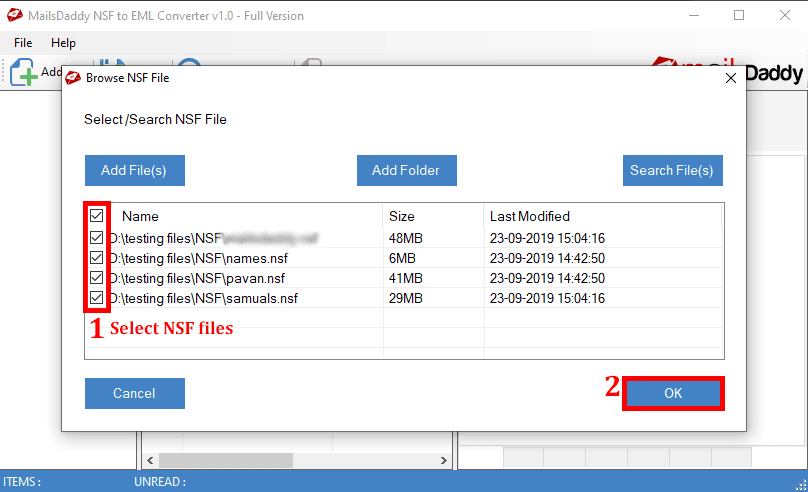
Step 4: Complete Operation
Right-click on an email if you want to save that NSF mail file in given other various formats.

The software generates a Preview of the selected email file
The software generates a Preview of the selected email file. Note: This step is optional so you can skip it.
You can search a particular mail by using given options from Search Mail button.
You can search a particular mail by using given options from Search Mail button.
Step 7: Complete Operation
You can directly export from the Search Mail option by clicking on Export Button but it migrates only those emails which are selected from search option.

Click on Export Button from home screen to export selected or all the email files.
Click on Export Button from home screen to export selected or all the email files.

Select options from each field as per requirements and click on the Export Button.
Select options from each field as per requirements and click on the Export Button.

Ready to Start with NSF to EML Converter?
Download the free trial version to preview all mailbox items or buy the full license for unlimited conversion.