Step By Step Working Guide Of MailsDaddy MBOX To PST Converter
Working Guide of the MailsDaddy MBOX to PST Converter.
Convert MBOX to PST (7 Steps)
Click on any screenshot to view full resolution.
Download and install the application (see Installation Guide)
Download and install the application (see Installation Guide). Launch the software and click the 'Get Demo' button to use the free trial edition. If you’ve already purchased an activation key, click the 'Activate' button to register the full version.
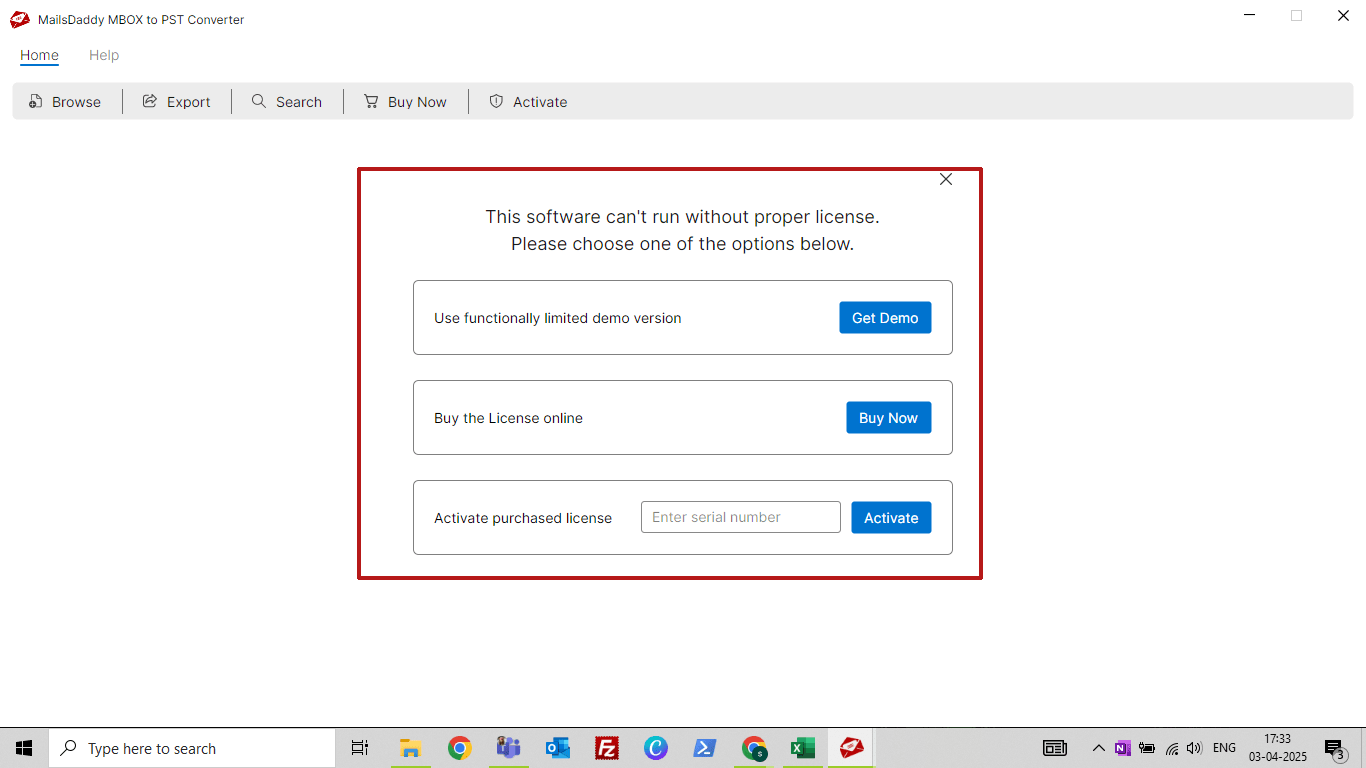
The first screen will appear on your window
The first screen will appear on your window. Click the 'Browse Mailbox' button or use the 'Browse' option from the header.
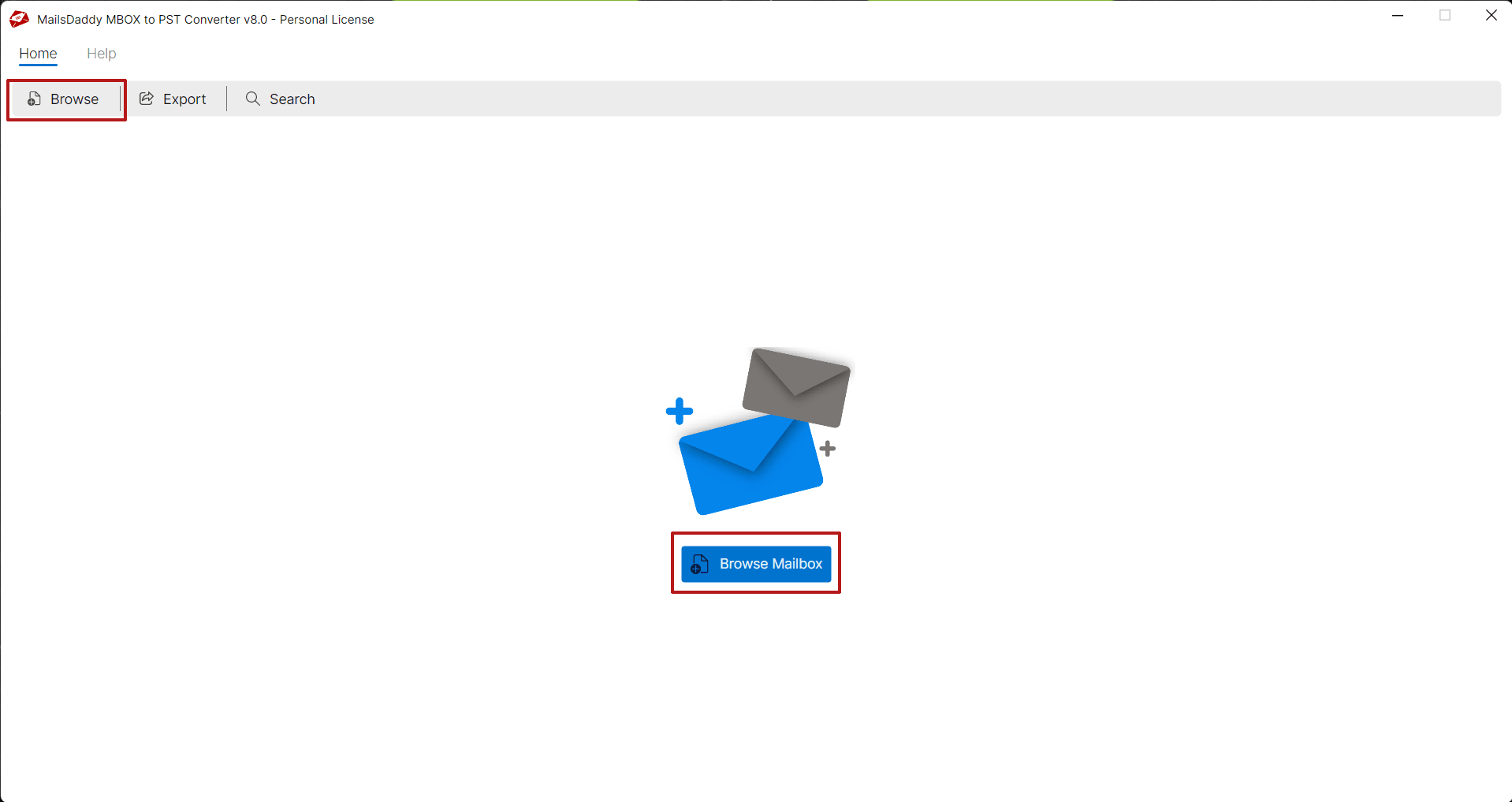
Now you will get three options to Add MBOX Files
Now you will get three options to Add MBOX Files. • Add MBOX File(s): This option is used to add a folder that contains MBOX files. • Mozilla Thunderbird/Postbox: Select this option if you are converting Thunderbird mail folders to PST • Apple Mail: By using this option you can browse folders/mailboxes exported from MAC OSX (Apple Mail)
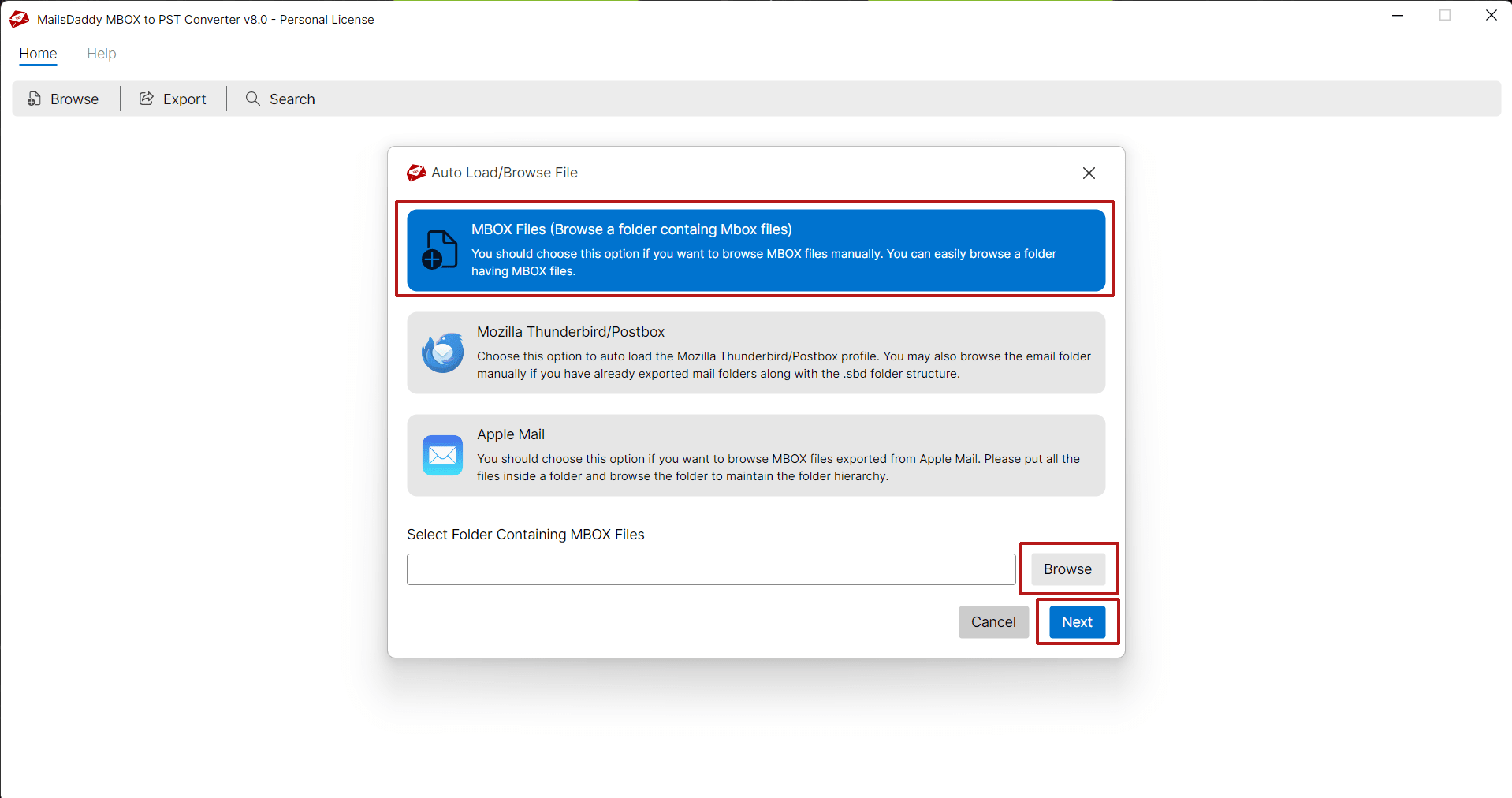
The tool will load all selected MBOX files at once
The tool will load all selected MBOX files at once. You can click on a specific MBOX file to view all its messages, and then click on any message to preview its content along with attachments. Loading and Previewing emails is optional you may skip and click the 'Export' button directly.
Export Window will appear
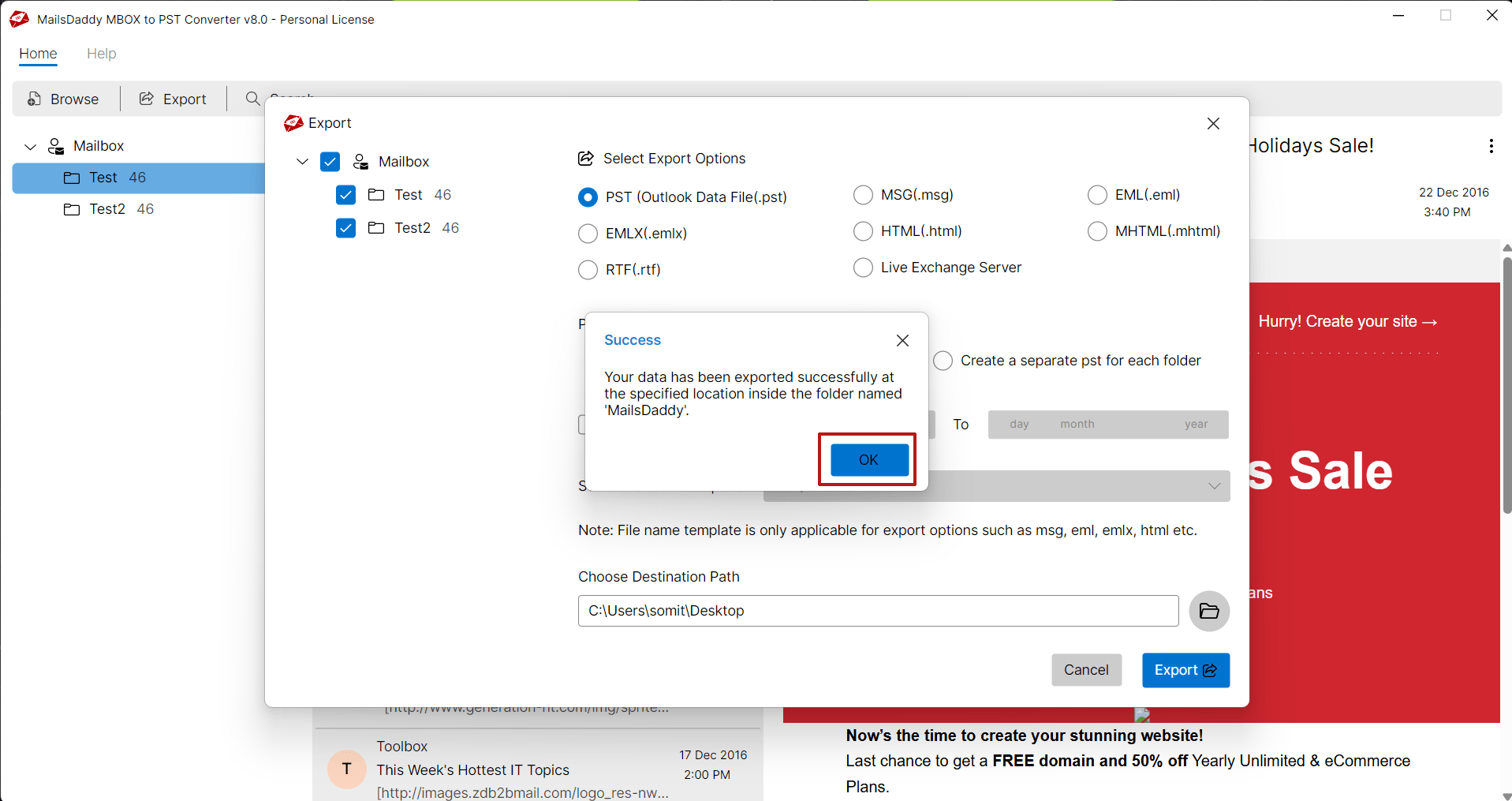
Export Window will appear. Select MBOX files from the tree panel which you want to export > Select Export option >> Date Filter (Optional) >> Destination Path >> Click on Export Button. Select an Export Option (PST, MSG, EML, RTF, HTML, MHTMML). We have selected PST from the export option. Create a separate PST for Each MBOX file: strong> By using feature you can create separate PST files for every MBOX file. Create Single PST file for all MBOX files: strong> This option help to merge all mbox file into a single PST file.
Export process begins and it will take a few minutes to export all slected files
Export process begins and it will take a few minutes to export all slected files. You can cancel the process in between by clicking on Abort button.
Step 6: Complete Operation
You will get a confirmation message "Your data has been exported successfully at the specified location inside the folder name MailsDaddy". Click on the OK button Read our blog to make sure how to open or import PST file in MS Outlook.
Ready to Start with MBOX to PST Converter?
Download the free trial version to preview all mailbox items or buy the full license for unlimited conversion.