Check Step By Step Software Working Guide
Working Guide of the MailsDaddy Free MBOX Viewer
How to open MBOX File? (11 Steps)
Click on any screenshot to view full resolution.
Click Free Download , Install & Launch the application in Windows OS
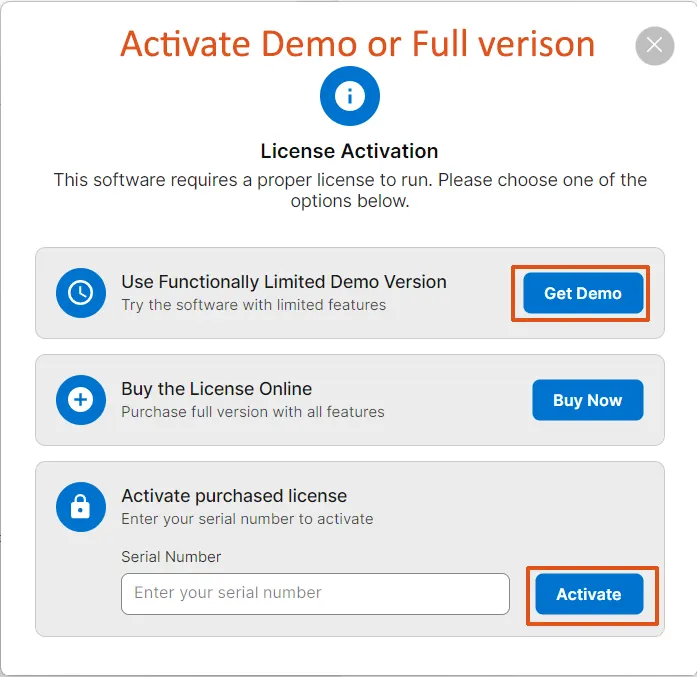
Click Free Download , Install & Launch the application in Windows OS. Click on Get Demo button to register free MBOX viewer.
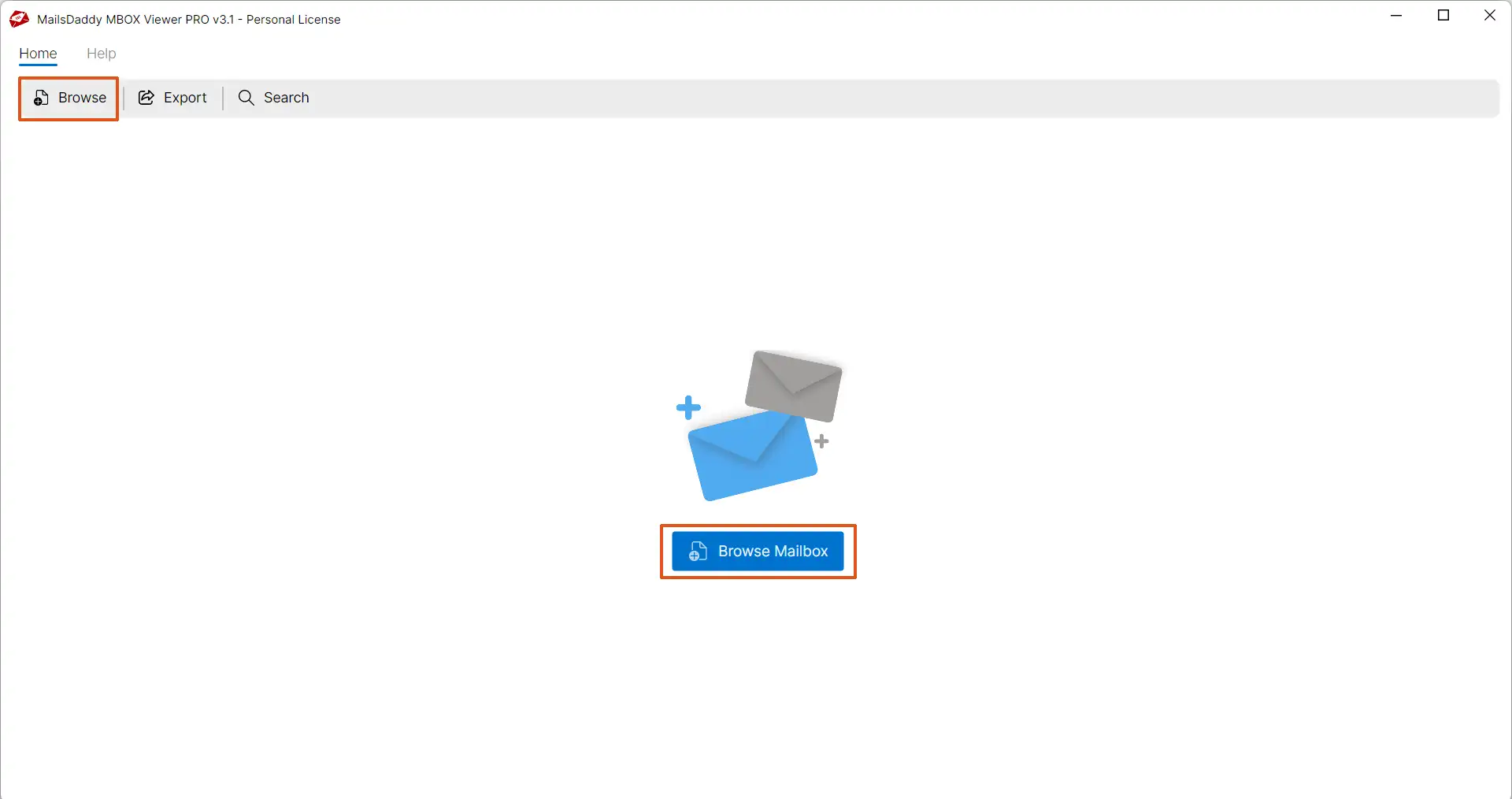
Now click on the Add mailbox button to Add MBOX files manually.
Now click on the Add mailbox button to Add MBOX files manually.
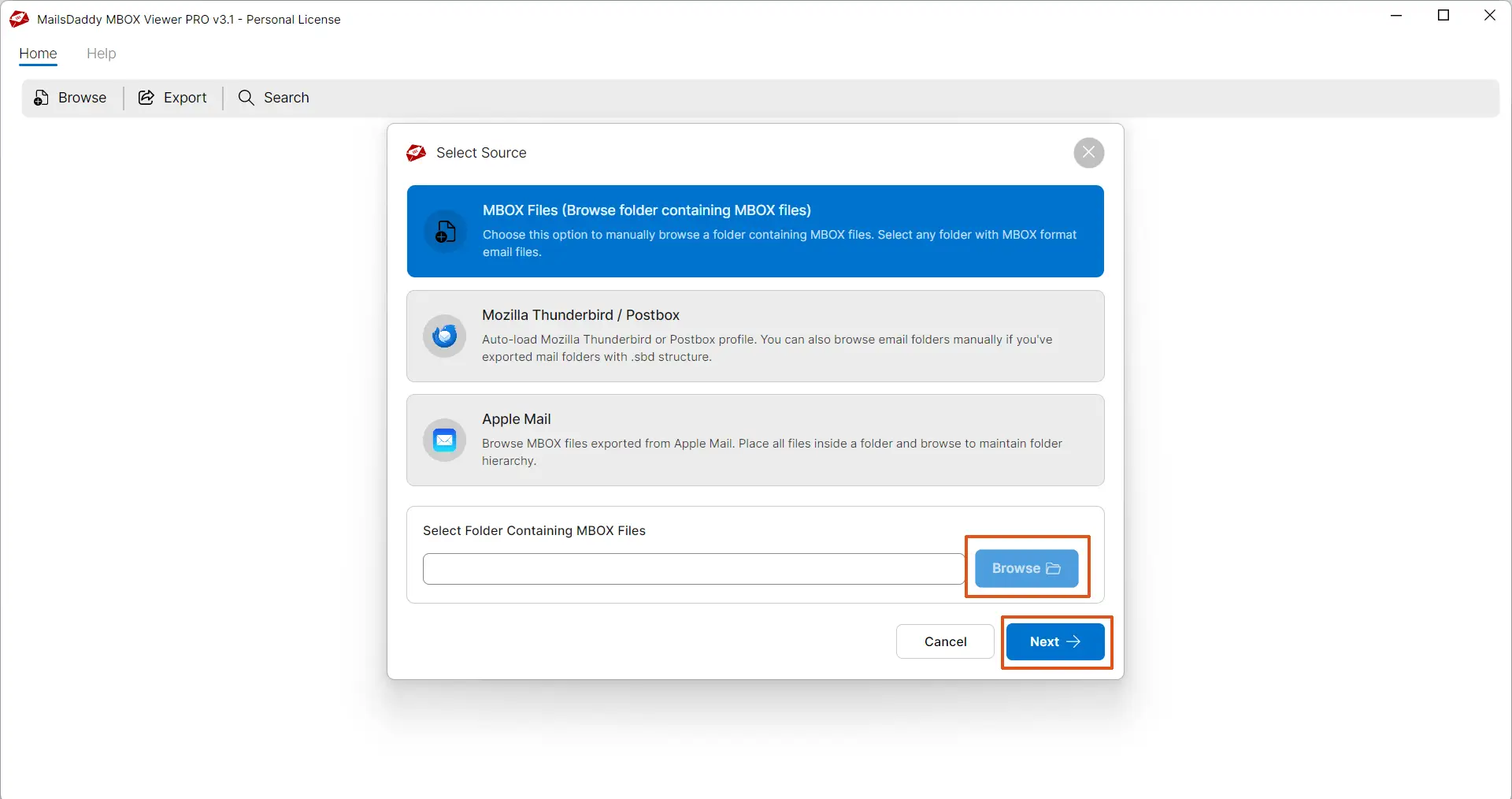
Step 3: Complete Operation
You will get three options to add MBOX files: Search folder, Thunderbird (.mbox) & Apple Mail (.mbox) . Choose MBOX search folder, if you don't want to add mailbox from Thunderbird and Apple Mail.
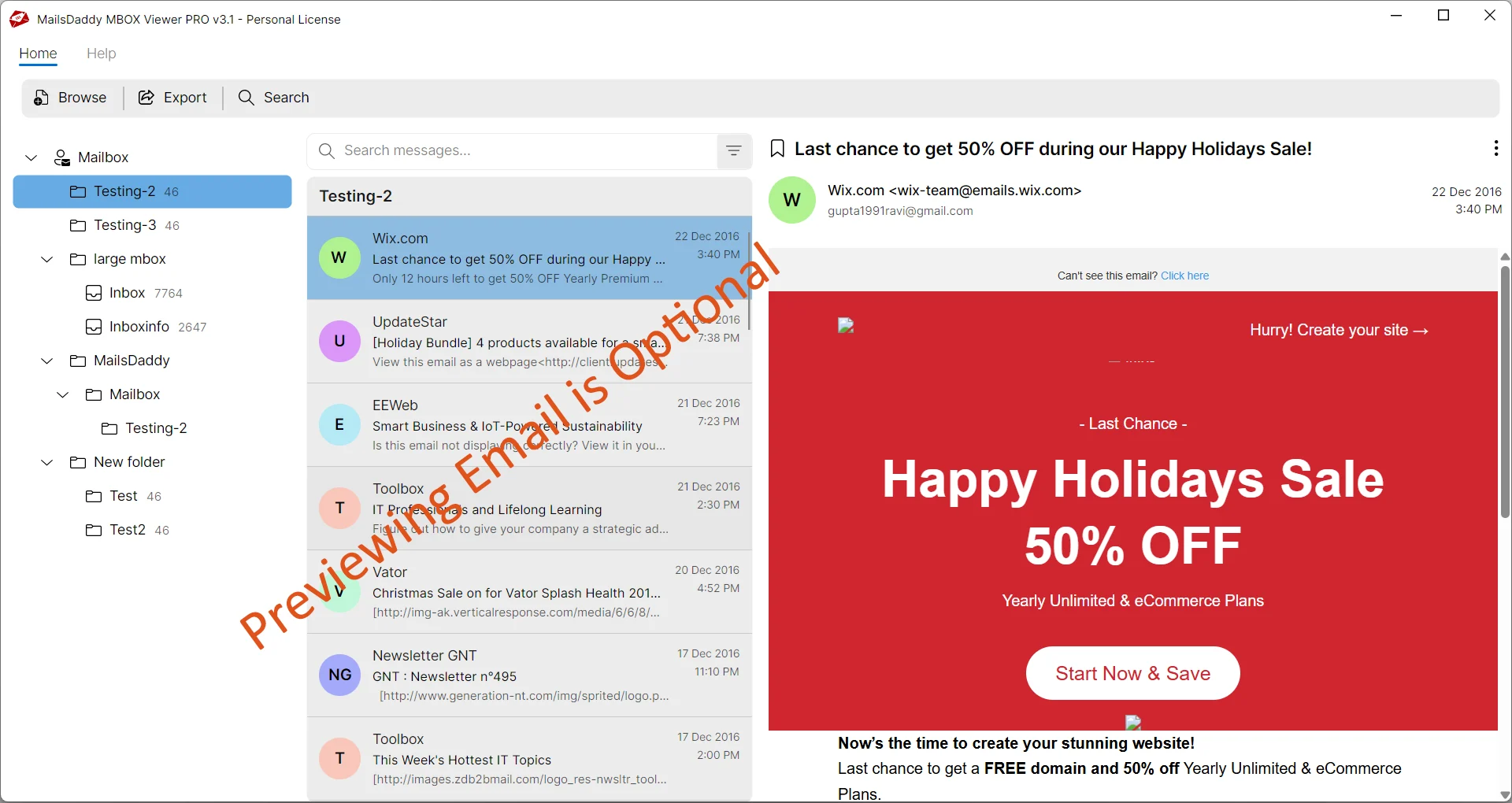
The software will load all selected MBOX files and show them on left pane
The software will load all selected MBOX files and show them on left pane. You just need to click on required MBOX email to view its messages. With MBOX Viewer Pro version
If you have pro version of MBOX viewer then you can also export the mailbox
If you have pro version of MBOX viewer then you can also export the mailbox. Simply click on Export button. Choose desire format (.pst/.eml/.msg etc.) and save the location to export.
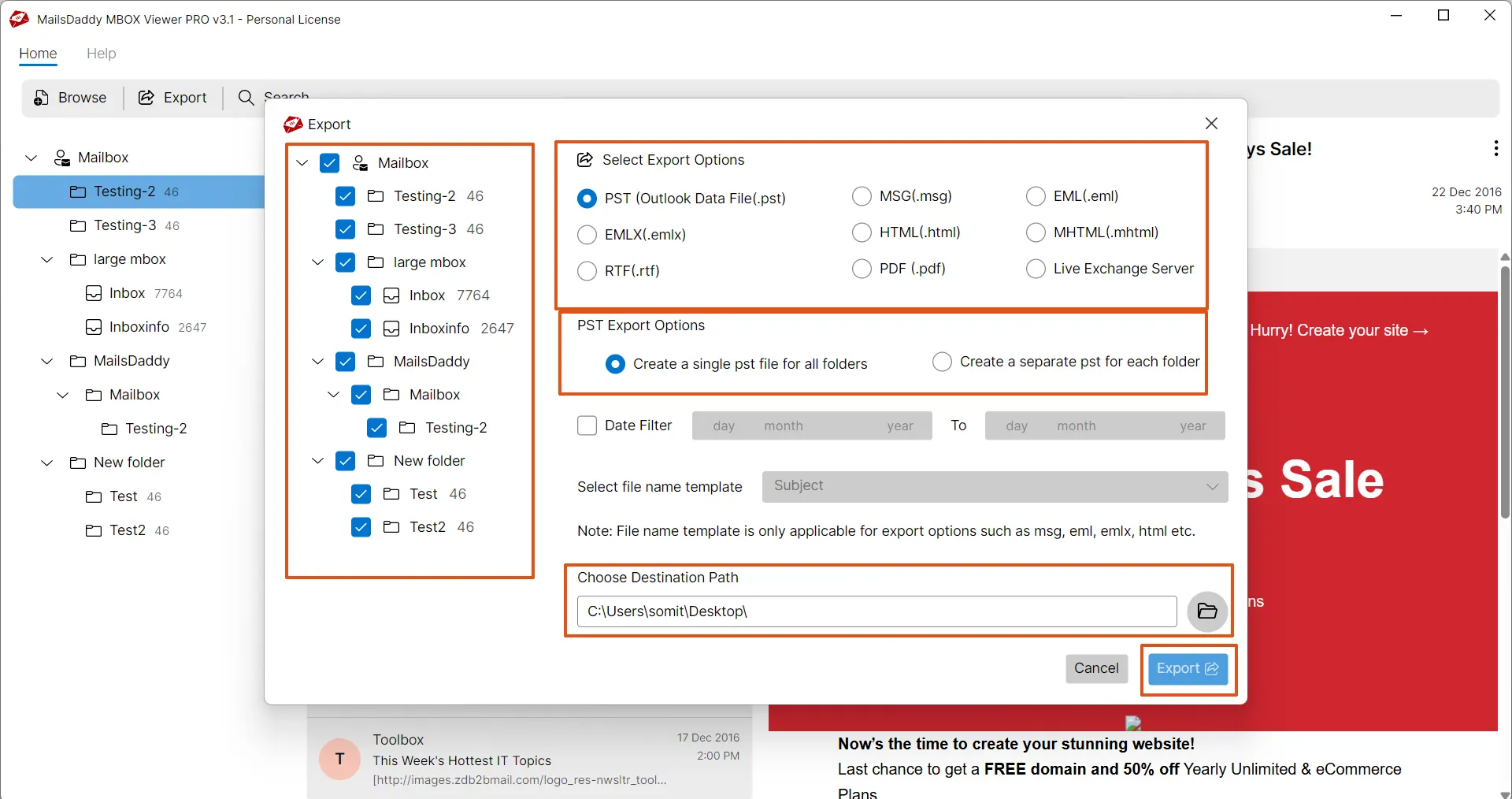
Click on the Export button to start conversion form MBOX file to selected format.
Click on the Export button to start conversion form MBOX file to selected format.
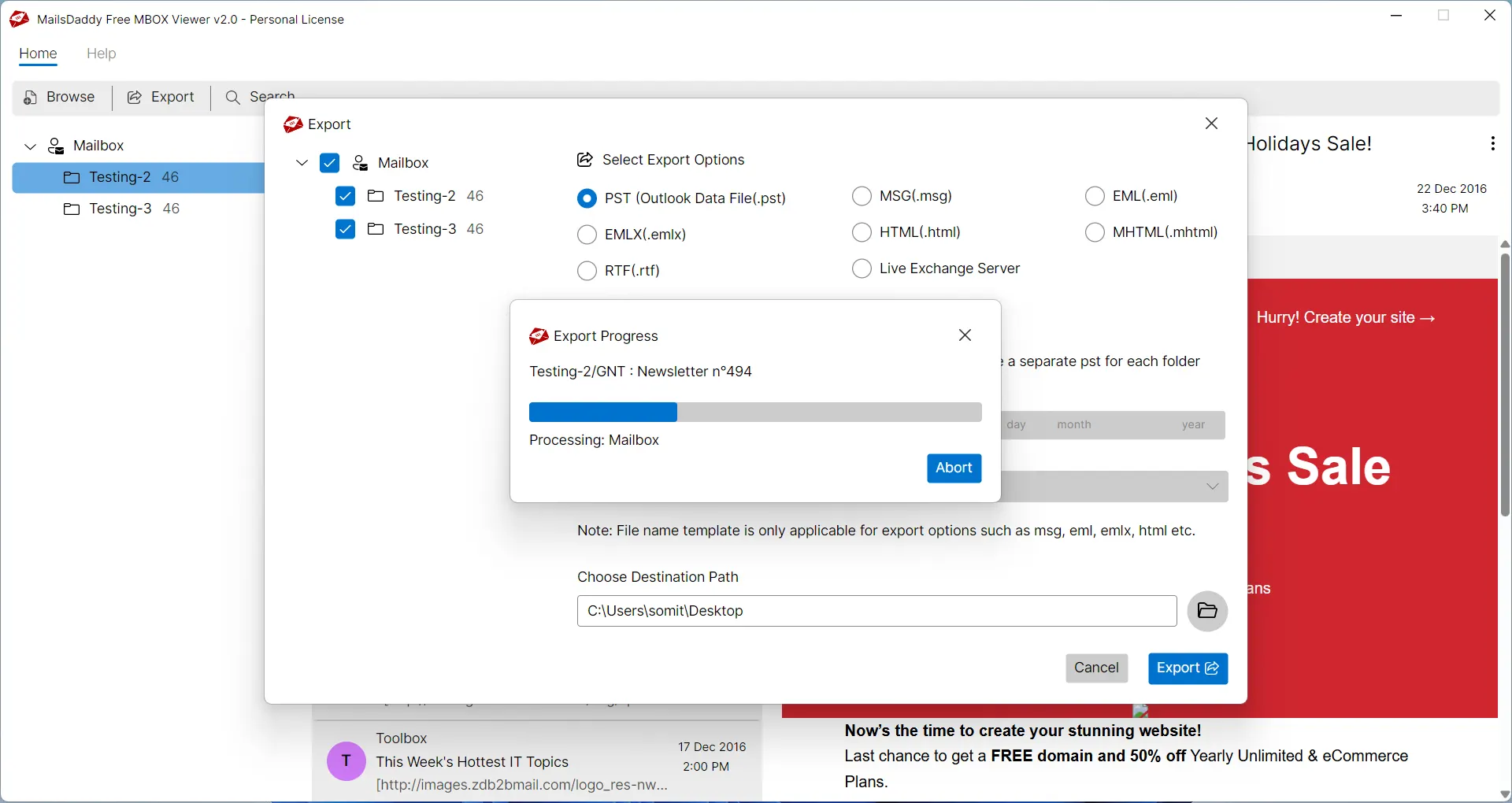
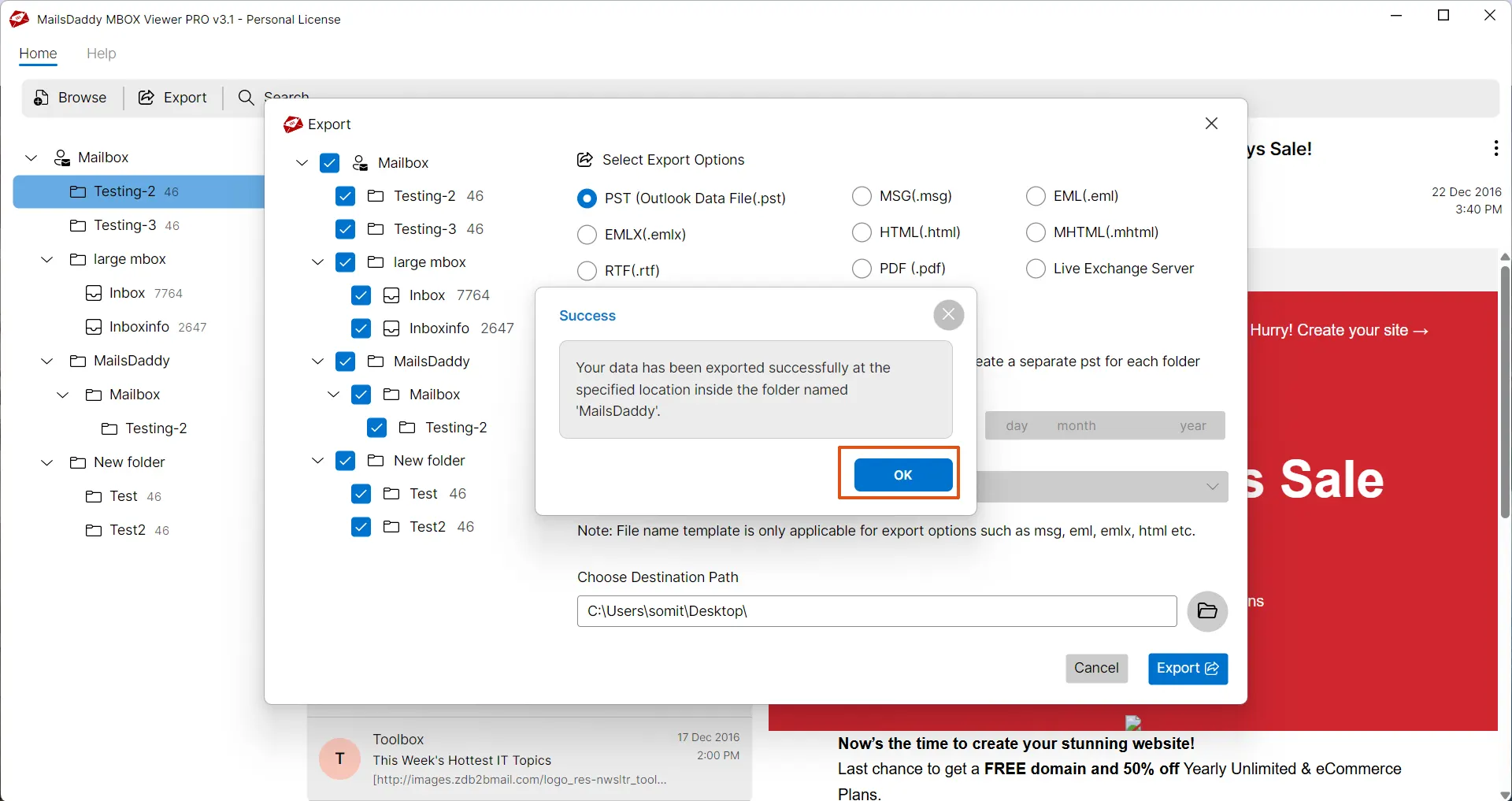
Once the migration is done
Once the migration is done. Click on OK button and visit the location to use converted mailbox with respective email client.
Step 8: Complete Operation
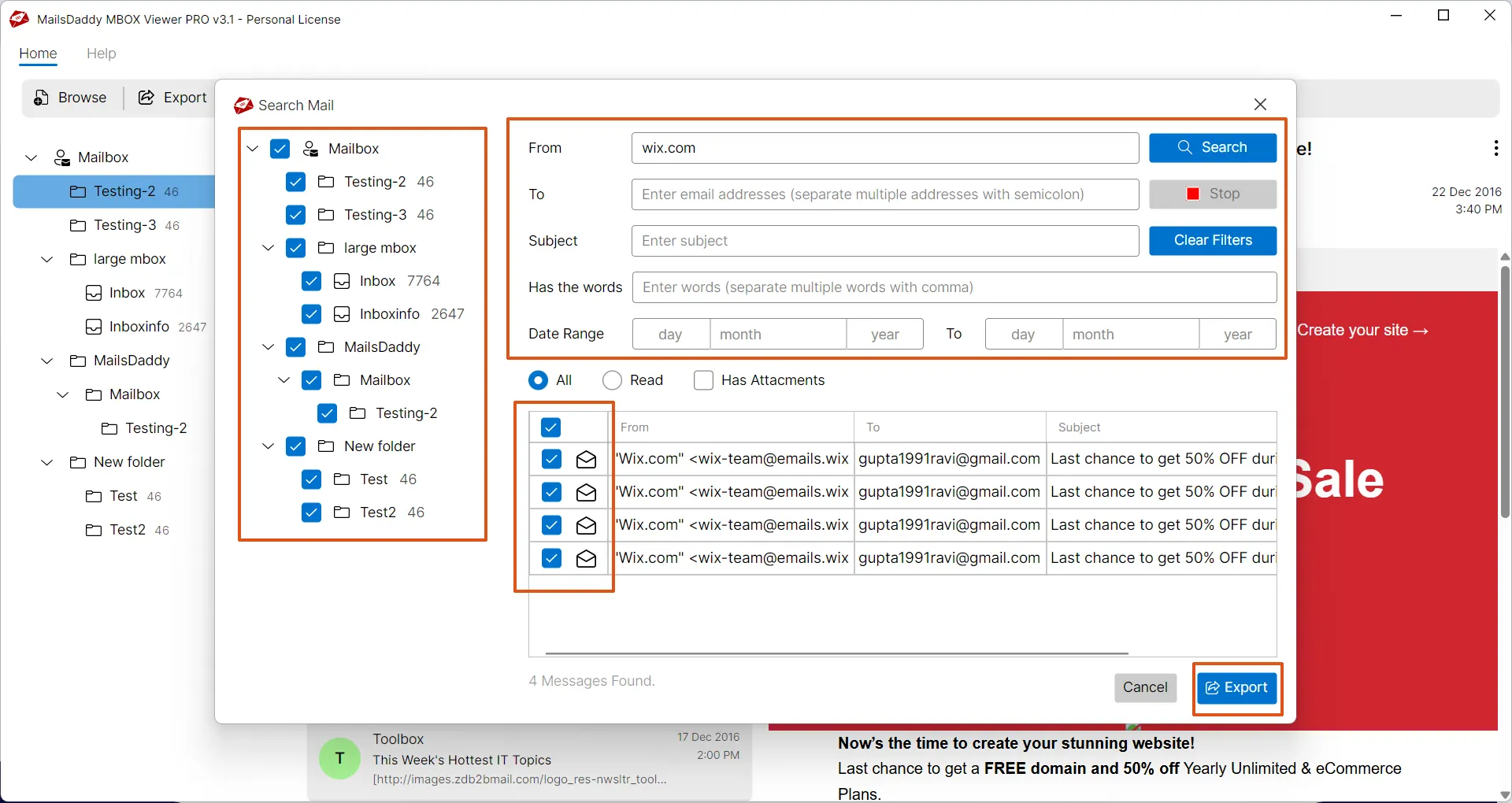
From preview window, click on Search button to find and export mails using various search parameters like To, From, Subject etc.
Select filter emails and click on Export button.
Select filter emails and click on Export button.
Choose desire conversion format then hit on Export button again to start conversion.
Choose desire conversion format then hit on Export button again to start conversion.
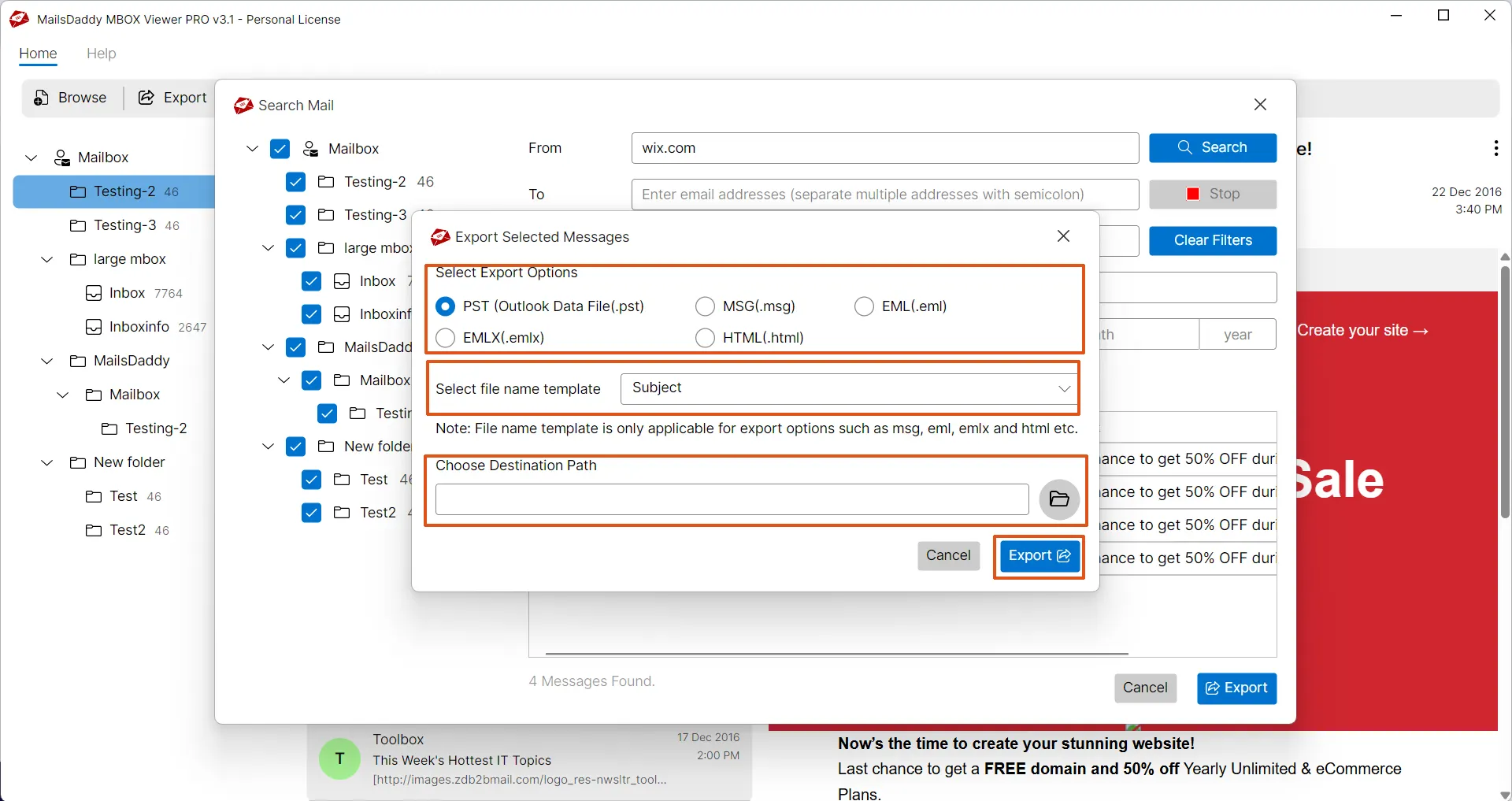
Step 10: Complete Operation
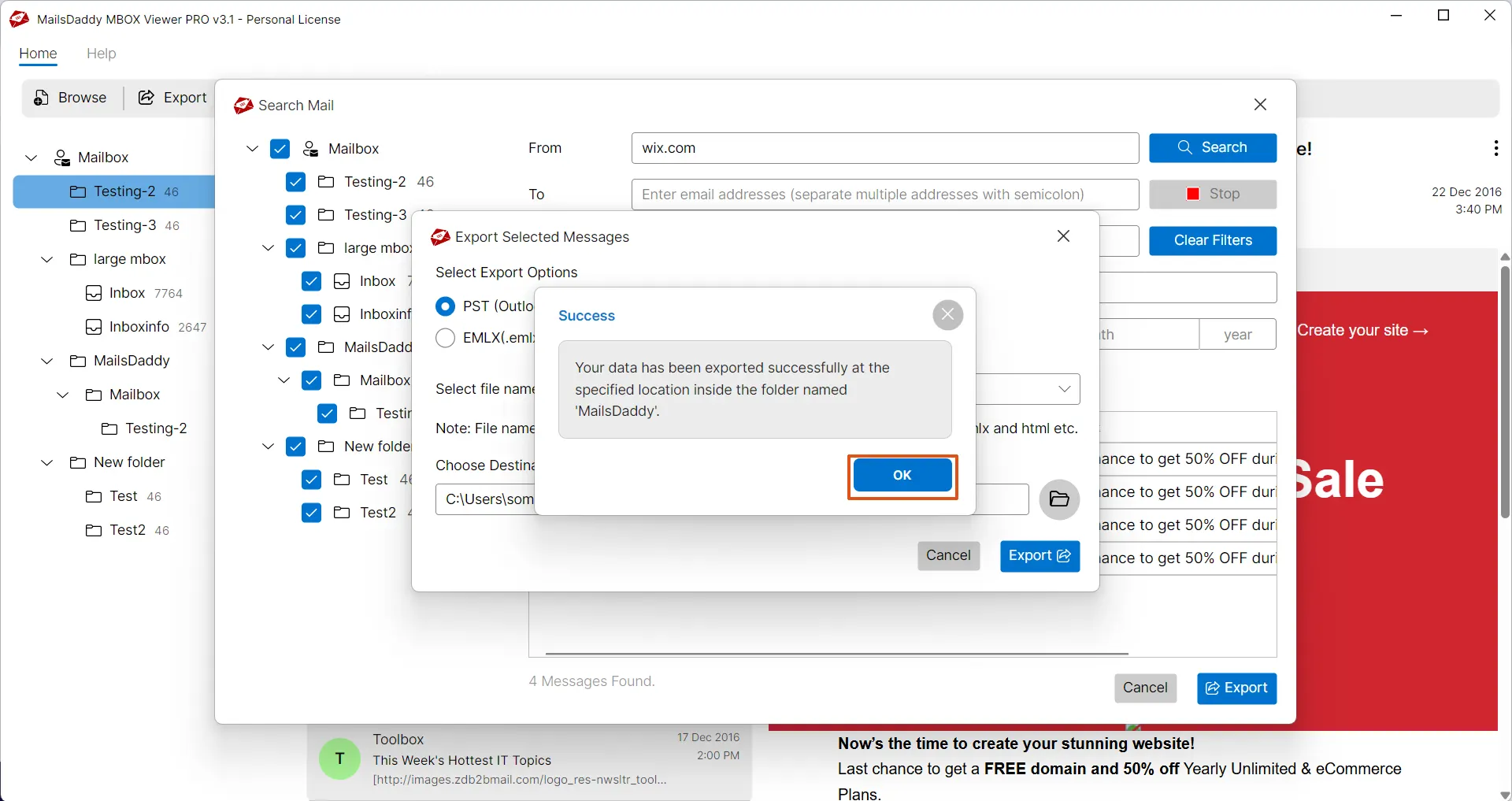
Within a few minute, you will see success message, click on Ok button and go to the destination to import mailbox into respective email client. Note : Free MSg viewer does not allows exporting or saving messages. To enable these features, purchase pro edition of the software
Ready to Start with Free MBOX Viewer?
Download the free trial version to preview all mailbox items or buy the full license for unlimited conversion.