Working Guide of MailsDaddy Free EML Viewer
Check Step By Step Software Working Guide to open, read, preview and export EML files.
How to read EML File? (7 Steps)
Click on any screenshot to view full resolution.
Download, Install & Launch Application
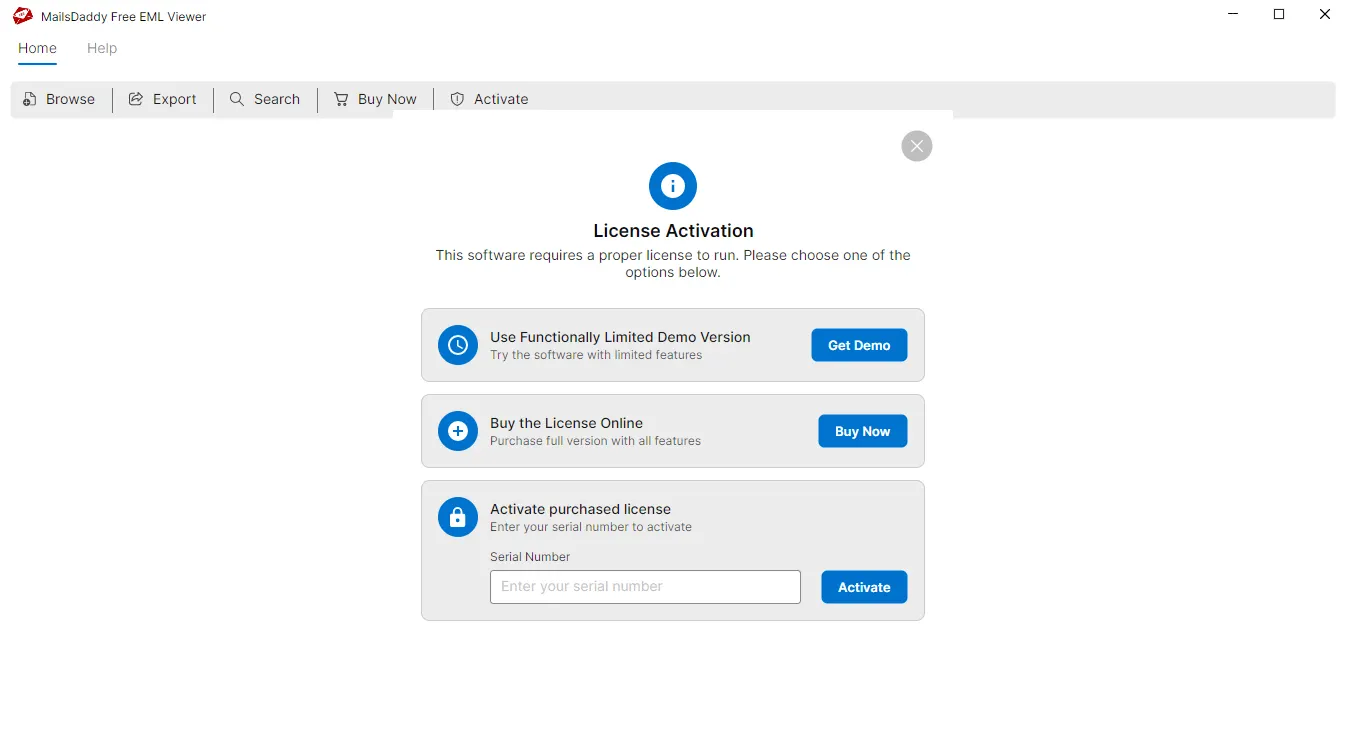
Free Download, Install & Launch the application. To view the EML file, activate the free demo and browse EML file.
Browse EML Folder Manually
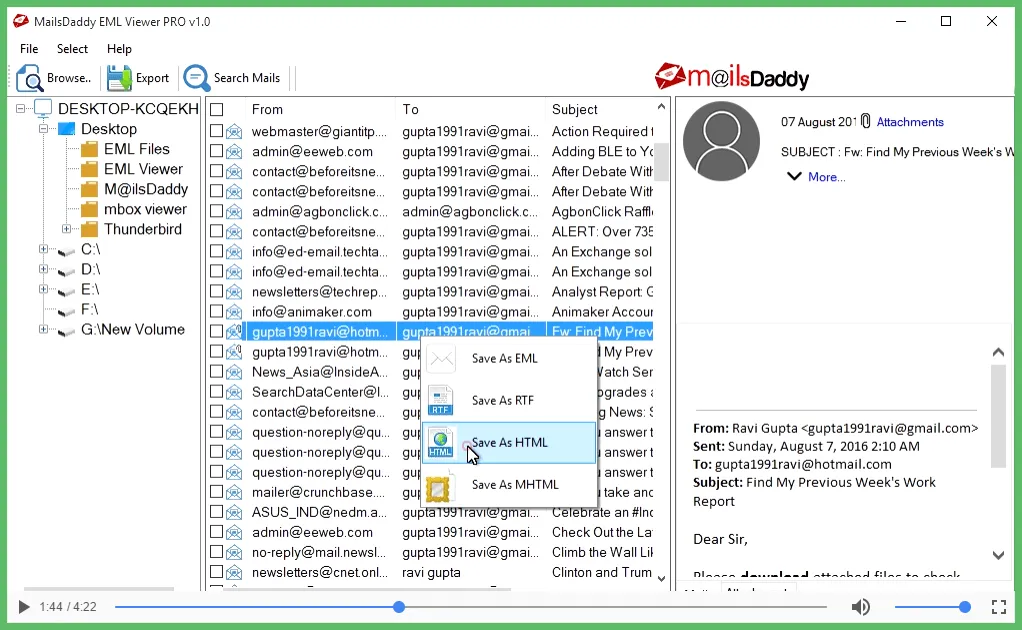
Click on Browse mailbox button to browse EML folder manually.

Preview Email Messages & Attachments
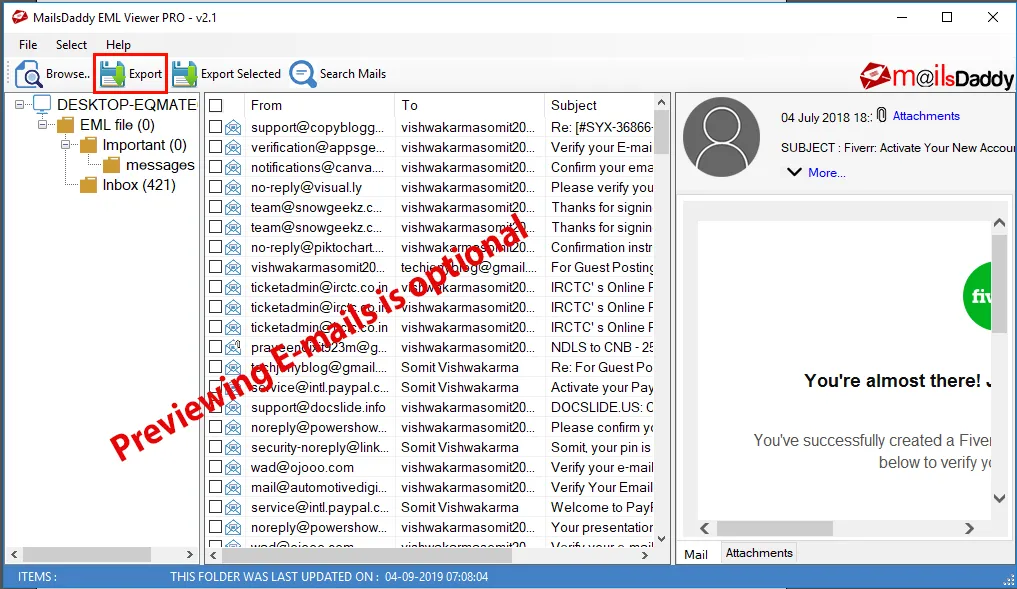
After loading the data, user can check the preview of particular email in the right side of pane.
Export to Desired Formats with Pro Edition
With the pro version, user can click on Export button and migrate emails into desire file formats. When you activate a pro version of the solution then you can able to export bulk mailbox into various file format.
Select Folders, Desired Mail Format & Destination
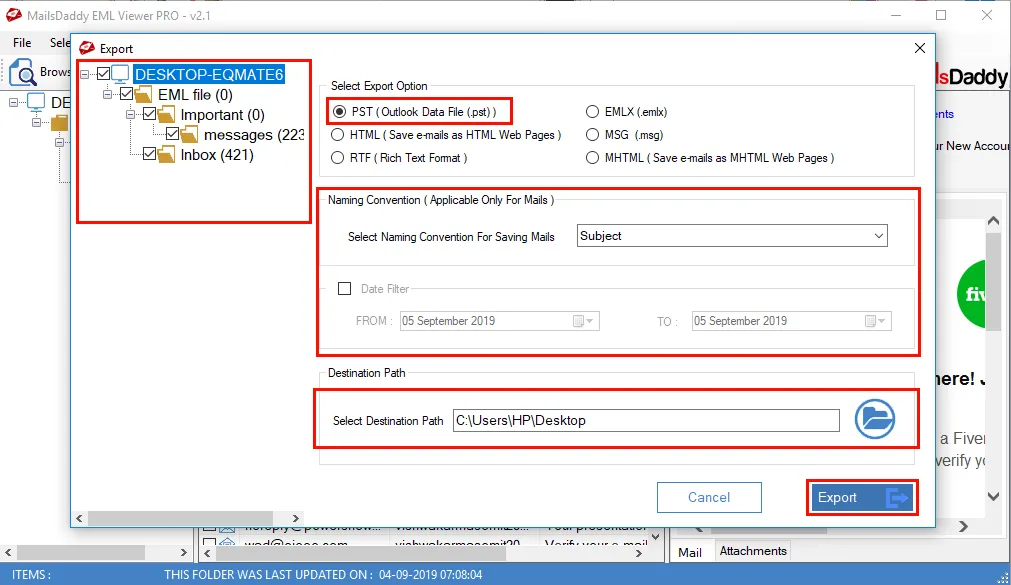
Choose all folders, select the desire mail format then save the destination. Click on Export button to start migration from EML to PST, EMLX, MSG and desire file formats.

Migration Process in Progress
It will take some time to finalize the migration process from EML file to various others.
Migration Completed Successfully
Once the migration is completed, press on OK button. And open EML file into desire email client like Outlook.

Ready to Start with Free EML Viewer?
Download the free trial version to preview all mailbox items or buy the full license for unlimited conversion.